
Clothing Customization
The Clothing Customization section in STPro Actor allows users to personalize character appearance using different clothing categories.
Users can choose from available outfits to create characters suitable for various scenes, professions, stories, and animation projects.
Purpose of Clothing Customization
Section titled “Purpose of Clothing Customization”Clothing Customization helps users:
- Personalize actor appearance
- Create unique character designs
- Match clothing to scene requirements
- Improve character realism
- Build professional-looking actors
Accessing Clothing Customization
Section titled “Accessing Clothing Customization”To access clothing customization:
- Open an Actor project.
- Navigate to the customization panel.
- Select the Clothing feature.
- Available clothing options appear in the Feature area.
Clothing Features
Section titled “Clothing Features”STPro Actor currently provides three clothing Features:
- Top Clothes
- Bottom Clothes
- Full Clothes
Users can customize clothing based on the selected Feature.
Top Clothes
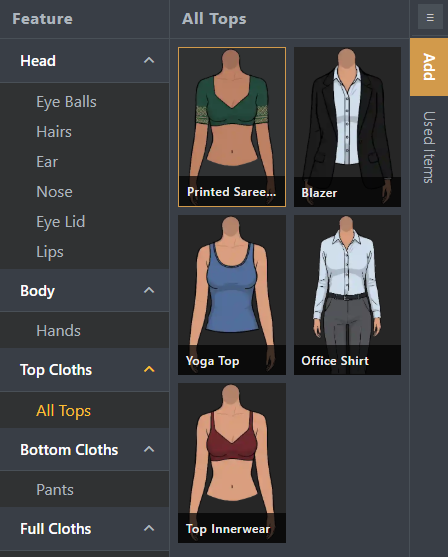
Section titled “Top Clothes”Top Clothes allow users to customize the upper portion of the character.
Examples may include:
- Shirts
- T-Shirts
- Jackets
- Hoodies
- Formal wear
- Casual wear
Users can:
- Browse available tops
- Select preferred clothing
- Change tops at any time
Bottom Clothes
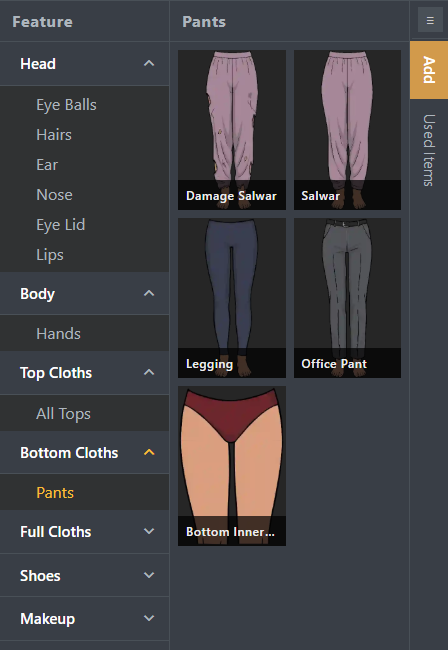
Section titled “Bottom Clothes”Bottom Clothes allow users to customize the lower portion of the character.
Examples may include:
- Pants
- Jeans
- Trousers
- Skirts
- Shorts
Users can:
- Browse available bottom wear
- Select preferred clothing
- Replace clothing whenever needed
Full Clothes
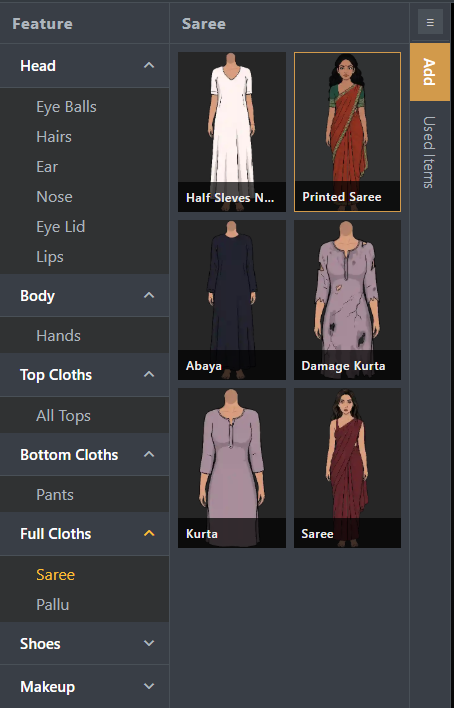
Section titled “Full Clothes”Full Clothes provide complete outfits that cover both upper and lower body areas.
Examples may include:
- Dresses
- Uniforms
- Traditional outfits
- Professional outfits
Full clothing options simplify character creation by applying a complete outfit in a single selection.
Selecting Clothing
Section titled “Selecting Clothing”To apply clothing:
- Open the Feature.
- Select a clothing Feature according to your will.
- Browse available options.
- Click the desired clothing item.
- The character preview updates automatically.
Real-Time Preview
Section titled “Real-Time Preview”All clothing changes are displayed immediately inside the character preview area.
This allows users to:
- Compare different outfits
- Test character appearance
- Create suitable costume combinations
- Make quick adjustments
Clothing Compatibility
Section titled “Clothing Compatibility”Clothing selections automatically work with:
- Head styles
- Body types
- Makeup selections
- Skin colors
- Pose settings
The system applies supported clothing combinations automatically.
Modifying Clothing
Section titled “Modifying Clothing”Users can update clothing at any time.
To change clothing:
- Open the Clothing section.
- Select another item.
- The previous clothing is replaced automatically.
- The preview updates instantly.
Benefits of Clothing Customization
Section titled “Benefits of Clothing Customization”Clothing Customization provides:
- Greater character variety
- Flexible appearance control
- Faster actor creation
- Professional character design
- Improved storytelling possibilities
Summary
Section titled “Summary”The Clothing Customization section allows users to personalize actors using top clothes, bottom clothes, and full clothing options. With real-time previews and flexible outfit selection, users can create visually appealing characters suitable for different animation projects and creative workflows.
Next Step
Section titled “Next Step”Continue to the next documentation section to learn:
- Makeup customization
- Available makeup options
- Enhancing character appearance
- Creating more detailed actors