
Dashboard Overview
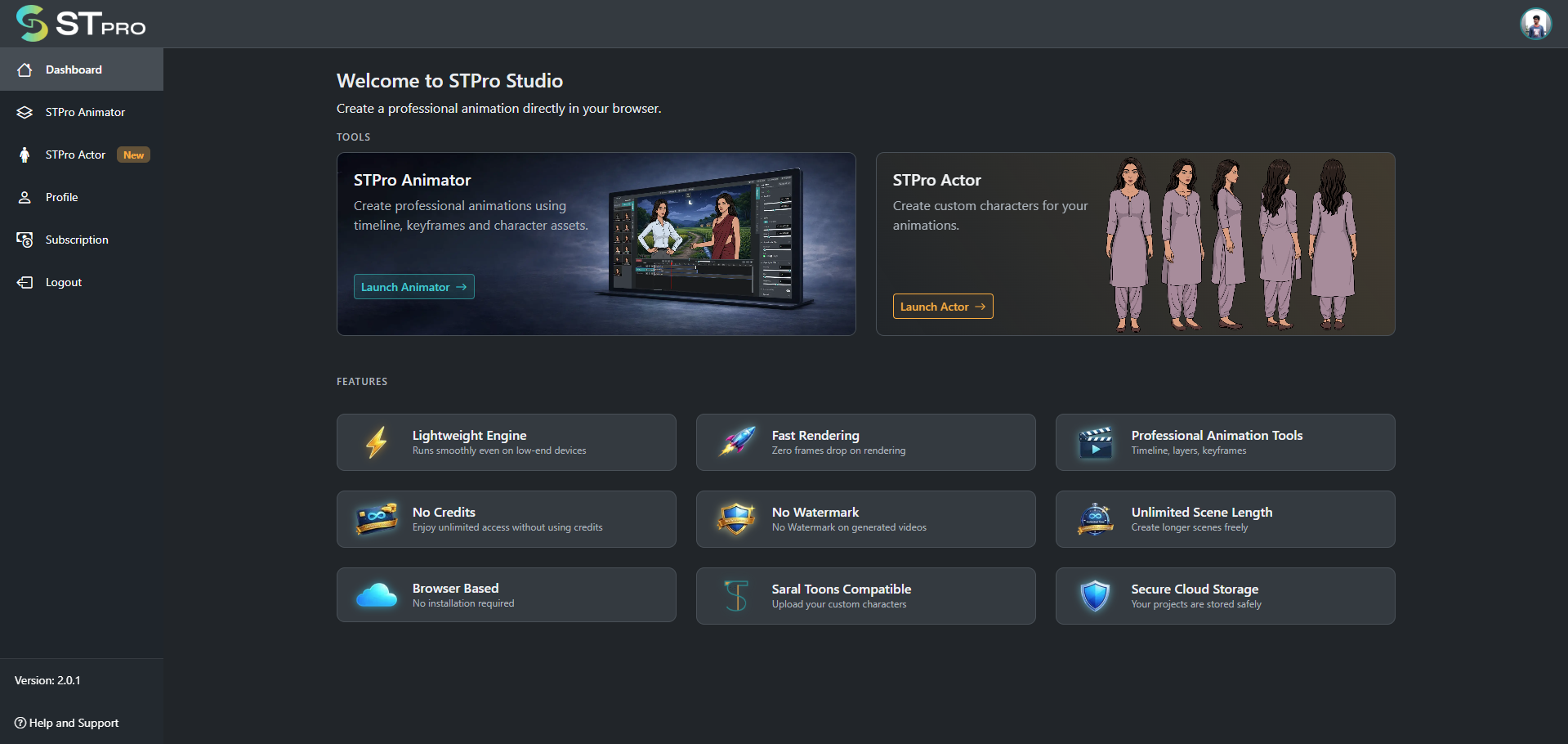
After successful login, users are redirected to the STPro Studio dashboard.
The dashboard acts as the main control center of the platform and provides access to all available STPro applications and account features.
From the dashboard, users can:
- Launch animation tool
- Launch actor creation tool
- Manage projects
- Access profile settings
- View subscriptions
- Navigate platform features
- Access support resources
Purpose of the Dashboard
Section titled “Purpose of the Dashboard”The dashboard is designed to provide a centralized workspace for users.
It helps users:
- Quickly access tools
- Organize workflow
- Manage platform access
- Navigate between applications
- Start animation projects efficiently
Main Dashboard Sections
Section titled “Main Dashboard Sections”The STPro Studio dashboard contains multiple sections and navigation areas.
STPro Animator
Section titled “STPro Animator”Overview
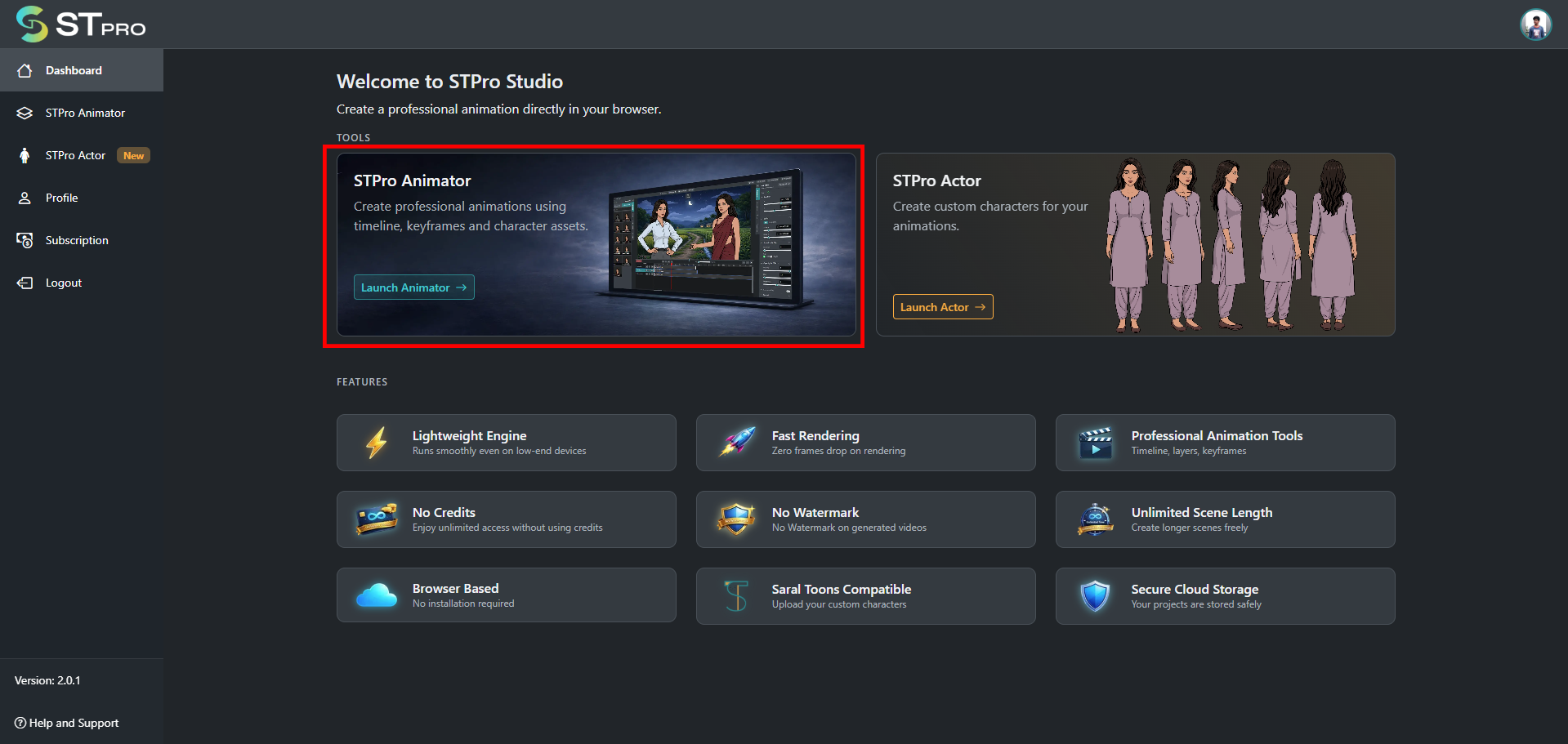
Section titled “Overview”STPro Animator is the primary animation application inside STPro Studio.
Users can launch the animation workspace directly from the dashboard.
Available Actions
Section titled “Available Actions”Users can:
- Open existing projects
- Create new projects
- Start animation workflows
- Access animation tools
- Manage scenes and assets
Launching Animator
Section titled “Launching Animator”To open the animator:
- Locate the STPro Animator section.
- Click on Launch Animator.
- The animation workspace opens in the browser.
Note for STPro Animator
Users should regularly save animation projects to prevent accidental loss of progress during editing sessions or browser interruptions.
STPro Actor
Section titled “STPro Actor”Overview
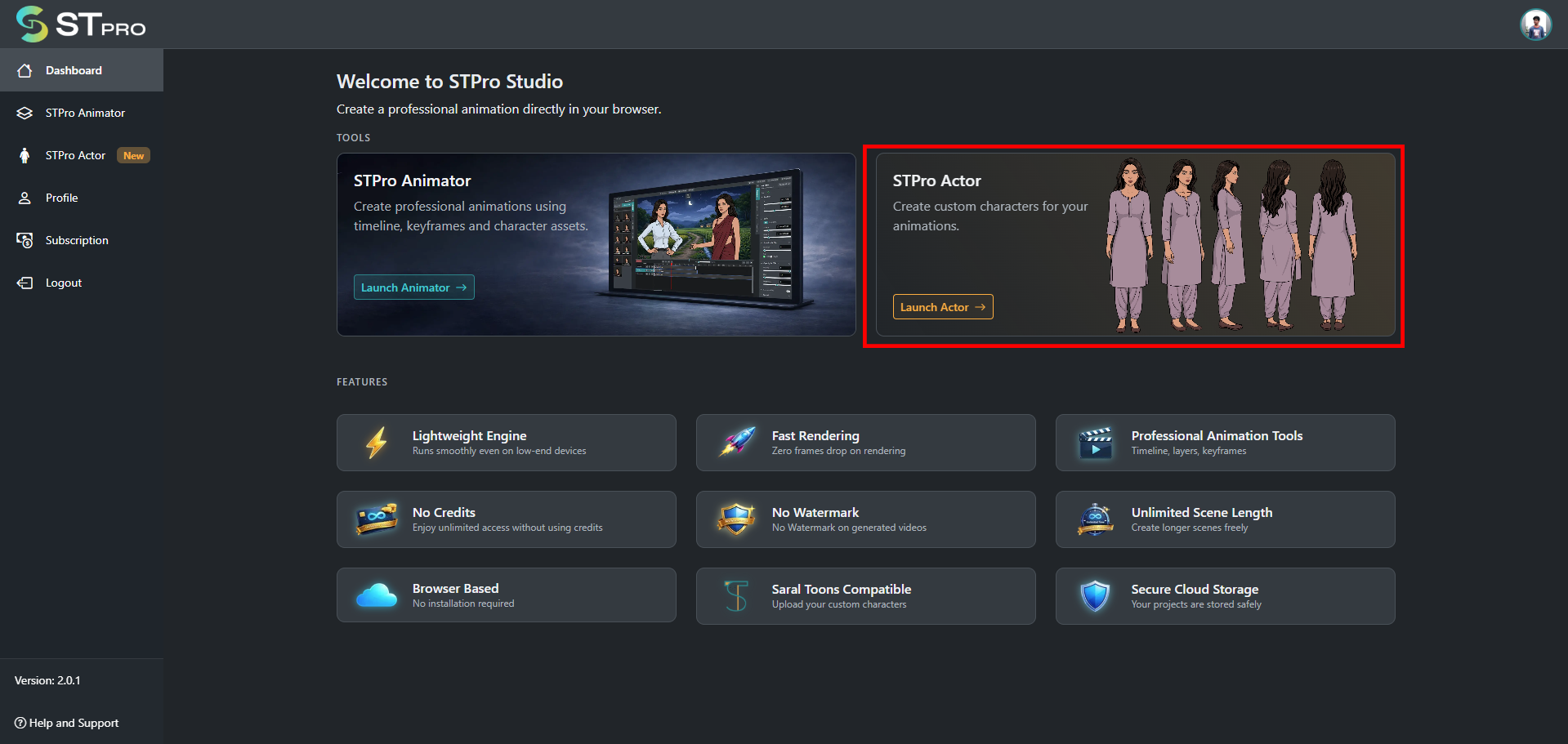
Section titled “Overview”STPro Actor is the dedicated character customization system inside STPro Studio.
It allows users to fully customize human characters directly from the browser.
Users can customize:
- Facial features
- Hair styles
- Clothing
- Shoes
- Body appearance
- Skin colors
- Character poses
- makeup
Available Actions
Section titled “Available Actions”Users can:
- Create custom human actors
- Modify character appearance
- Save actor progress
- Preview character poses
- Reset character position
- Render actors
- Access render history
Launching STPro Actor
Section titled “Launching STPro Actor”To open STPro Actor:
- Locate the STPro Actor section.
- Click on Launch Actor.
- The actor customization workspace opens in the browser.
Actor Rendering Workflow
Section titled “Actor Rendering Workflow”After successful rendering:
- The customized actor is processed by the STPro Actor system
- The rendered character automatically appears inside the user’s Animator assets
- Users can directly use rendered actors inside animation scenes
Note for STPro Actor
STPro Actor currently supports only human character creation.
Rendering actors requires an active subscription.
Without subscription, users can customize and preview actors but cannot render them.
Users should save progress regularly while editing actors.
Unsaved changes may reset when reopening projects or switching customization sections.
Profile Section
Section titled “Profile Section”The Profile section allows users to view and manage account-related information.
Users can access:
- Profile details
- Account settings
- Authentication information
- Subscription details
- Usage information
Profile Information
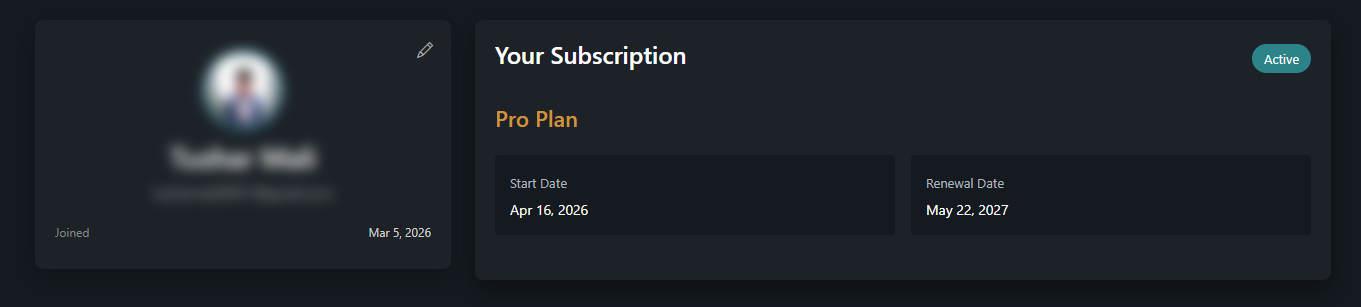
Section titled “Profile Information”The Profile page displays the user’s account information, including:
- Profile picture
- Profile name
- Registered email address
- Account creation date (Joined Date)
This information helps users identify and manage their STPro account.
Editing Profile Details
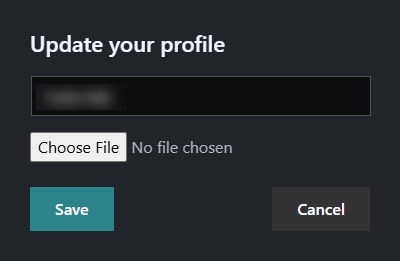
Section titled “Editing Profile Details”Users can customize their profile directly from the Profile page.
Change Profile Name
Section titled “Change Profile Name”To update the profile name:
- Open the Profile section.
- Click the Edit icon on the profile card.
- Enter a new profile name.
- Save the changes.
The updated name will be reflected across the STPro platform.
Change Profile Picture
Section titled “Change Profile Picture”Users can upload a custom profile picture.
To update the profile picture:
- Open the Profile section.
- Click the profile image or edit option.
- Upload a new image from the device.
- Save the changes.
The selected image becomes the user’s account avatar throughout the platform.
- Profile names can be updated at any time.
- Profile pictures can be changed whenever needed.
- Email addresses are displayed for account identification.
- Subscription details are automatically updated based on the user’s plan status.
Subscription Section
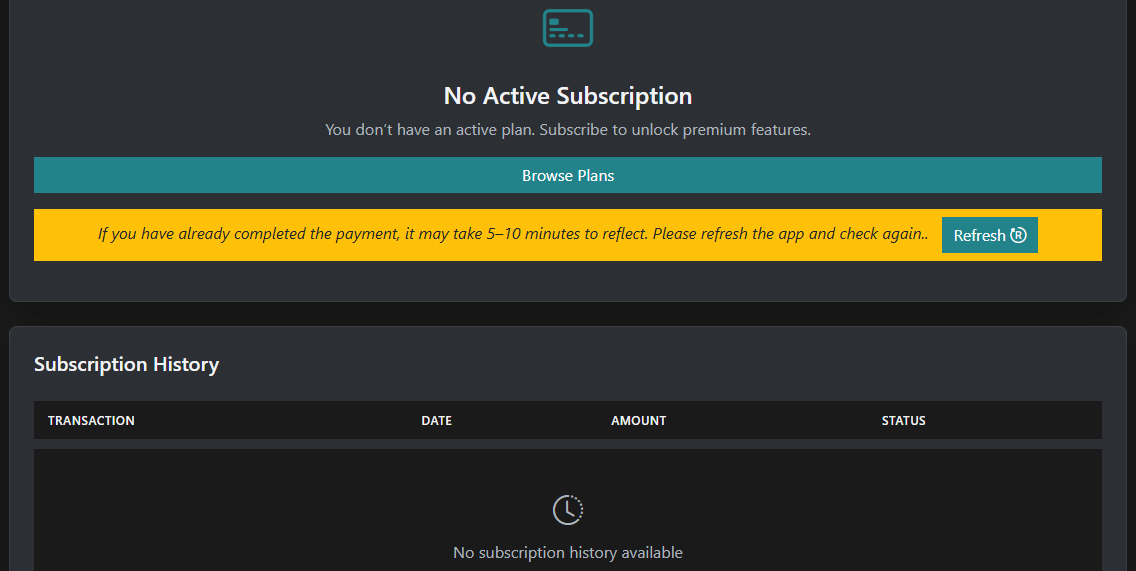
Section titled “Subscription Section”The subscription area contains plan and upgrade information.
Users can:
- View current subscription
- Upgrade plans
- Access premium features
- Manage billing-related settings
STPro Actor rendering features may require an active subscription plan.
Logout Option
Section titled “Logout Option”The dashboard provides a logout feature for secure session management.
Logout Steps
Section titled “Logout Steps”- Open the profile or account menu.
- Click on Logout.
- The current session ends securely.
Logging out is recommended when using shared or public systems.
Help and Support
Section titled “Help and Support”The dashboard may contain support and assistance options for users.
Support resources may include:
- Help documentation
- Contact support
- FAQs
- Troubleshooting guides
- Platform updates
Dashboard Highlights
Section titled “Dashboard Highlights”The dashboard also presents important platform capabilities and feature highlights.
Common highlights include:
- Lightweight animation engine
- Browser-based workflow
- Fast rendering
- Professional animation tools
- Human actor customization
- Unlimited scene creation
- No heavy software installation
- Creator-friendly interface
Navigation Experience
Section titled “Navigation Experience”The dashboard is designed for simple and efficient navigation.
Users can quickly move between:
- Applications
- Projects
- Account settings
- Asset management sections
- Subscription controls
First-Time User Experience
Section titled “First-Time User Experience”When users log in for the first time:
- Users can access STPro Animator for Animation.
- Users can access STPro Actor for character creation.
- The workspaces may appear empty if no projects exist in both tools.
- New projects can be created using the available project controls.
Browser-Based Accessibility
Section titled “Browser-Based Accessibility”Since STPro Studio is web-based, the dashboard can be accessed from supported browsers without local software installation.
Advantages include:
- Faster onboarding
- Easy updates
- Cross-device accessibility
- Lightweight workflow
Security and Session Management
Section titled “Security and Session Management”The dashboard operates under authenticated user sessions.
For account safety:
- Avoid sharing login credentials
- Logout after use on shared systems
- Keep authentication details secure
Common Dashboard Actions
Section titled “Common Dashboard Actions”Typical user actions from the dashboard include:
- Launching Animator
- Launching STPro Actor
- Opening projects
- Creating animations
- Creating actors
- Managing assets
- Accessing subscriptions
- Updating profile information
Performance Recommendations
Section titled “Performance Recommendations”For smooth dashboard performance:
- Use updated browsers
- Maintain stable internet connectivity
- Avoid excessive browser tabs
- Use desktop or laptop systems for animation workflows
Next Step
Section titled “Next Step”Continue to the next documentation section to learn:
- STPro Actor interface overview
- Character customization controls
- Actor rendering workflow
- Using rendered actors inside STPro Animator