
Animations
The Animations panel allows users to apply motion and behavior to characters inside a scene.
Animations bring characters to life by controlling actions such as walking, talking, sleeping, idle movements, expressions, and custom motions.
The Animations panel is located on the right side of the STPro Animator workspace.
Purpose of the Animations Panel
Section titled “Purpose of the Animations Panel”The Animations panel helps users:
- Animate characters quickly
- Apply predefined motions
- Create realistic character behavior
- Build storytelling scenes
- Control character actions without manual rigging
- Combine animation with scene elements
Animations can be applied to both platform-provided characters and rendered STPro Actor characters.
Accessing the Animations Panel
Section titled “Accessing the Animations Panel”To access animations:
- Add a character to the scene.
- Select the character.
- Open the Animations tab from the right panel.
The available animations for the selected character will appear.
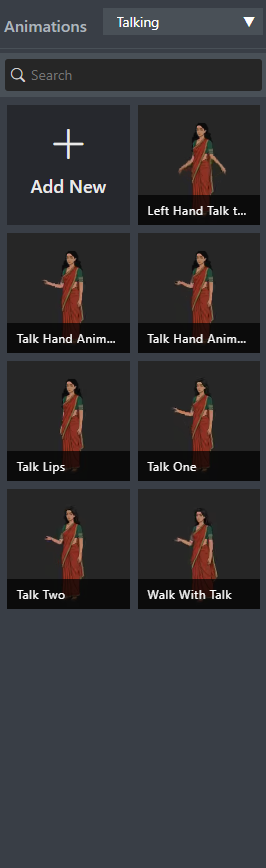
Available Animation Categories
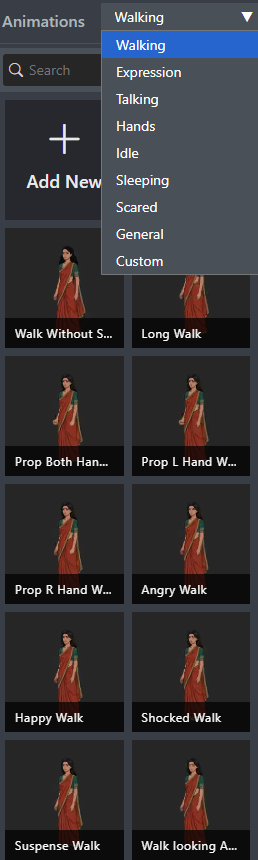
Section titled “Available Animation Categories”STPro Animator provides multiple animation categories.
Common categories include:
- Walking
- Talking
- Idle
- Sleeping
- Expressions
- Hands
- Custom Animations
The available animations may vary depending on the selected character type.
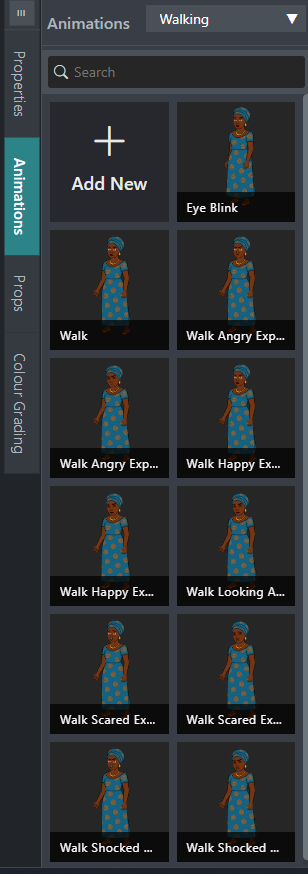
Walking Animations
Section titled “Walking Animations”Walking animations simulate character movement.
These animations are useful for:
- Character entrances
- Character exits
- Movement across scenes
- Storytelling sequences
- Background character activity
Users can select a walking animation and apply it directly to the character.
Talking Animations
Section titled “Talking Animations”Talking animations simulate speech-related body movements.
These animations are commonly used for:
- Dialogue scenes
- Presentations
- Educational videos
- Marketing content
- Narration sequences
Talking animations can be combined with audio and voiceovers.
Idle Animations
Section titled “Idle Animations”Idle animations create natural character movement while standing still.
Examples include:
- Breathing motions
- Subtle body movement
- Natural posture adjustments
Idle animations help prevent characters from appearing static.
Sleeping Animations
Section titled “Sleeping Animations”Sleeping animations simulate resting or sleeping behavior.
Common use cases include:
- Bedroom scenes
- Dream sequences
- Storytelling content
- Character downtime scenes
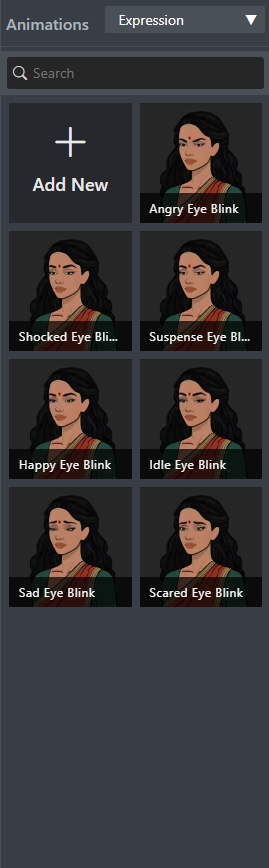
Expression Animations
Section titled “Expression Animations”Expression animations add emotional behavior to characters.
Examples may include:
- Happy
- Sad
- Angry
- Shocked
- Scared
- Suspense
Expressions help improve storytelling and audience engagement.
Hands Animations
Section titled “Hands Animations”Hands animations control arm, hand, and gesture movements that help characters communicate more naturally.
These animations are useful for:
- Presentations
- Explanations
- Conversations
- Teaching content
- Business videos
- Storytelling scenes
Common hand animations may include:
- Pointing
- Waving
- Greeting
- Explaining
- Hand raising
- Gesture-based communication
Hand animations can be combined with talking animations to create more realistic character performances.
Custom Character Animation
Section titled “Custom Character Animation”The + New option inside the Animations panel allows users to create custom character animations using the FK (Forward Kinematics) animation system.
Unlike predefined animations, FK animation gives users direct control over character body parts and poses.
Users can create completely custom movements by manually adjusting character joints and recording keyframes.
Applying an Animation
Section titled “Applying an Animation”To apply an animation:
- Select a character.
- Open the Animations panel.
- Browse available animations.
- Click the desired animation.
The animation is immediately applied to the selected character.
Replacing an Existing Animation
Section titled “Replacing an Existing Animation”A character can only play one primary animation at a time.
When a new animation is selected:
- The previous animation is replaced
- The new animation becomes active
- Timeline updates automatically
This allows users to quickly test different character actions.
Animation Preview
Section titled “Animation Preview”Animations can be previewed directly inside the canvas.
Previewing helps users:
- Verify movement quality
- Check scene compatibility
- Review character behavior
- Make adjustments before rendering
Changes appear immediately in the workspace.
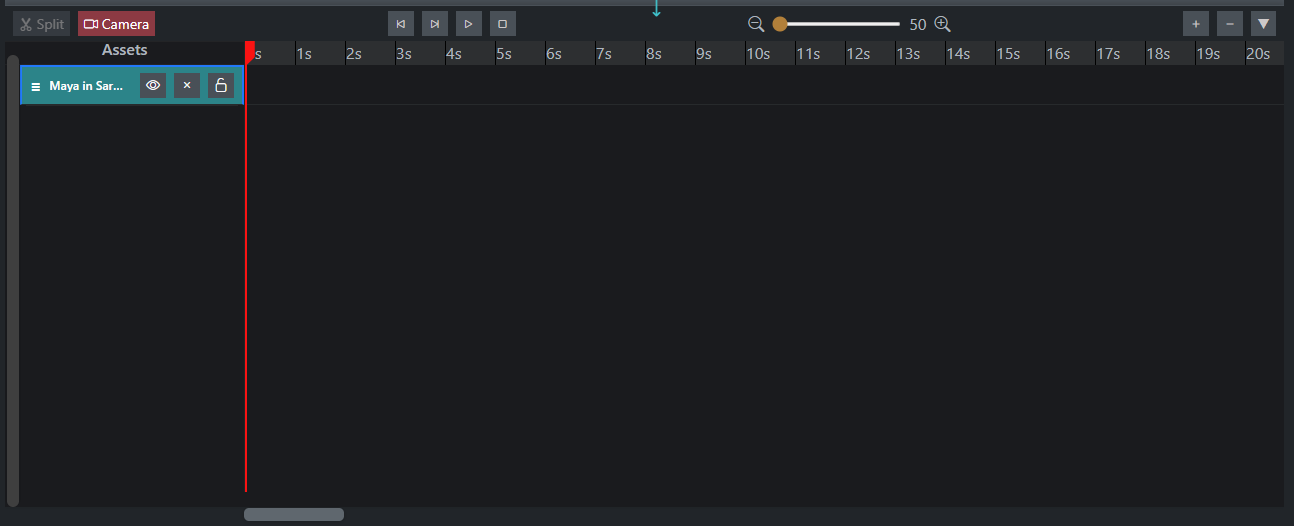
Animation and Timeline Integration
Section titled “Animation and Timeline Integration”Applied animations are automatically connected to the timeline.
The timeline allows users to:
- View animation duration
- Adjust timing
- Synchronize actions
- Coordinate multiple characters
Animation tracks are displayed within the timeline area.
Working with Multiple Characters
Section titled “Working with Multiple Characters”Different animations can be assigned to different characters within the same scene.
Example:
- Character A → Talking
- Character B → Idle
- Character C → Walking
This allows users to build complex and dynamic scenes.
Animation Workflow Example
Section titled “Animation Workflow Example”A common workflow is:
- Add a character to the scene.
- Select the character.
- Open the Animations panel.
- Apply an animation.
- Adjust scene placement.
- Add additional characters.
- Apply suitable animations.
- Preview the scene.
- Render the final video.
Tips for Better Animations
Section titled “Tips for Better Animations”For more natural scenes:
- Use idle animations when characters are not speaking
- Match animations to scene context
- Combine talking animations with voiceovers
- Use expressions to support emotions
- Preview scenes before rendering
These practices improve realism and storytelling quality.
Common Issues
Section titled “Common Issues”Animation Not Playing
Section titled “Animation Not Playing”Possible causes:
- No character selected
- Animation not applied
- Scene not updated
Solution:
- Select the character again
- Reapply the animation
- Refresh the scene preview
Wrong Character Animated
Section titled “Wrong Character Animated”Possible cause:
- Different character selected during animation assignment
Solution:
- Verify the selected character
- Reapply the animation to the correct character
Animation Appears Unnatural
Section titled “Animation Appears Unnatural”Possible cause:
- Animation does not match scene context
Solution:
- Try a different animation
- Use expressions or idle animations where appropriate
Benefits of the Animations Panel
Section titled “Benefits of the Animations Panel”The Animations panel provides:
- Fast character animation
- Prebuilt motion libraries
- Easy scene creation
- Better storytelling
- Reduced animation effort
- Professional animation workflows
Summary
Section titled “Summary”The Animations panel is used to add motion and behavior to characters in STPro Animator. Users can apply walking, talking, idle, sleeping, expression, and hand animations to create engaging scenes. For advanced customization, the + New option allows users to create fully custom FK animations using keyframes and manual character posing.
Next Step
Section titled “Next Step”Continue to the next section to learn about:
- FK (Forward Kinematics) animation
- Bone-based character animation
- Creating custom character poses
- Controlling individual body parts
- Advanced character movement workflows