
Top Toolbar
The Top Toolbar is located at the top of the STPro Animator workspace and provides quick access to project-level actions and scene management tools.
It serves as the central control area for managing projects, scenes, rendering operations, and workspace settings.
Purpose of the Top Toolbar
Section titled “Purpose of the Top Toolbar”The Top Toolbar helps users:
- Access project settings
- Save project progress
- Control rendering workflows
- Monitor project information
These tools allow users to efficiently manage animation production from a single location.
Toolbar Overview
Section titled “Toolbar Overview”The Top Toolbar contains controls that affect the entire animation project rather than individual objects or assets.
Common options available in the toolbar :
- Project Information
- Save Project
- Render Animations
- Download
- Screenshot
- Upgrade Subscription
- Reset Project
- orientation
- preview

Project Information
Section titled “Project Information”The toolbar displays important project details such as:
- Project Name
- Active Workspace
This information helps users identify the project they are currently working on.
Save Project
Section titled “Save Project”The Save option stores the current state of the animation project.
Saving preserves:
- Scene layouts
- Asset placements
- Animation settings
- Timeline data
- Project configurations
Note
Project saves automatically in every 3 seconds.
Regular manual saving is recommended to prevent accidental data loss while working on large projects.
Render Controls
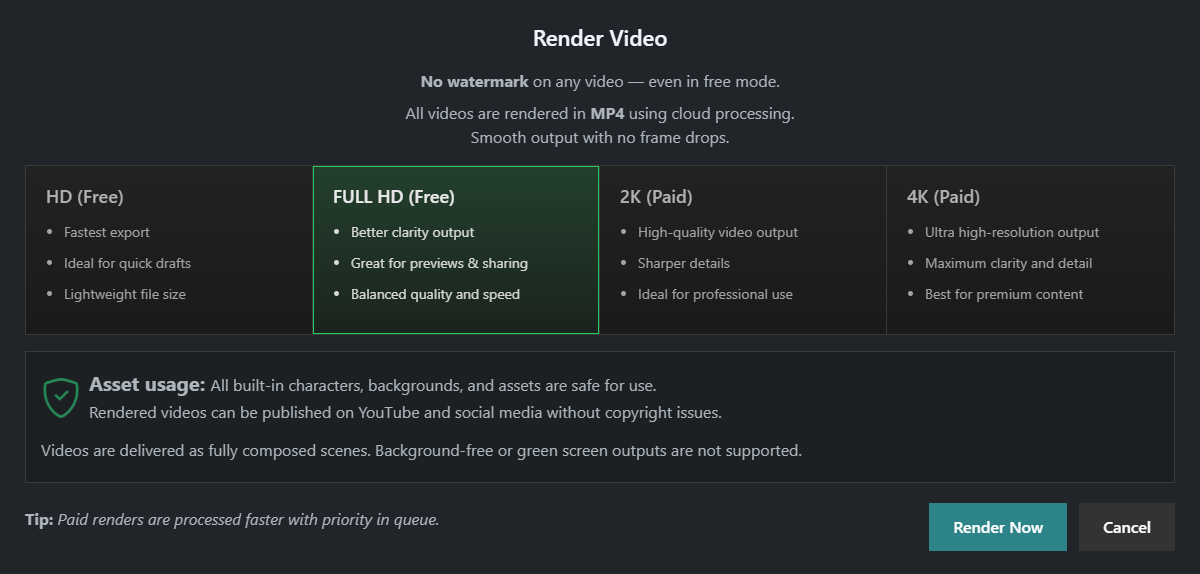
Section titled “Render Controls”The Render option allows users to generate the final animation output.
Before rendering, users should:
- Save the project
- Verify animations
- Check scene arrangements
- Review timeline content
Rendering converts the animation project into a video output.
Note
Rendering availability and output quality may depend on the user’s subscription plan.
Render Quality Options
Section titled “Render Quality Options”STPro Animator provides multiple render quality to meet different production requirements.
Available render qualities :
- HD (0.8 mbps)
- Full HD (1.8 mbps)
- 2k (4 mbps)
- 4K (8 mbps)
Note
Free users can access HD and Full HD rendering options, while premium plans unlock higher resolutions such as 2K and 4K.
Download Rendered Videos
Section titled “Download Rendered Videos”After rendering is completed:
- Click Download.
- Open Render History.
- Locate the completed render.
- Save the rendered video to your device.
Downloaded videos can be used for publishing, sharing, or further editing.
Render History
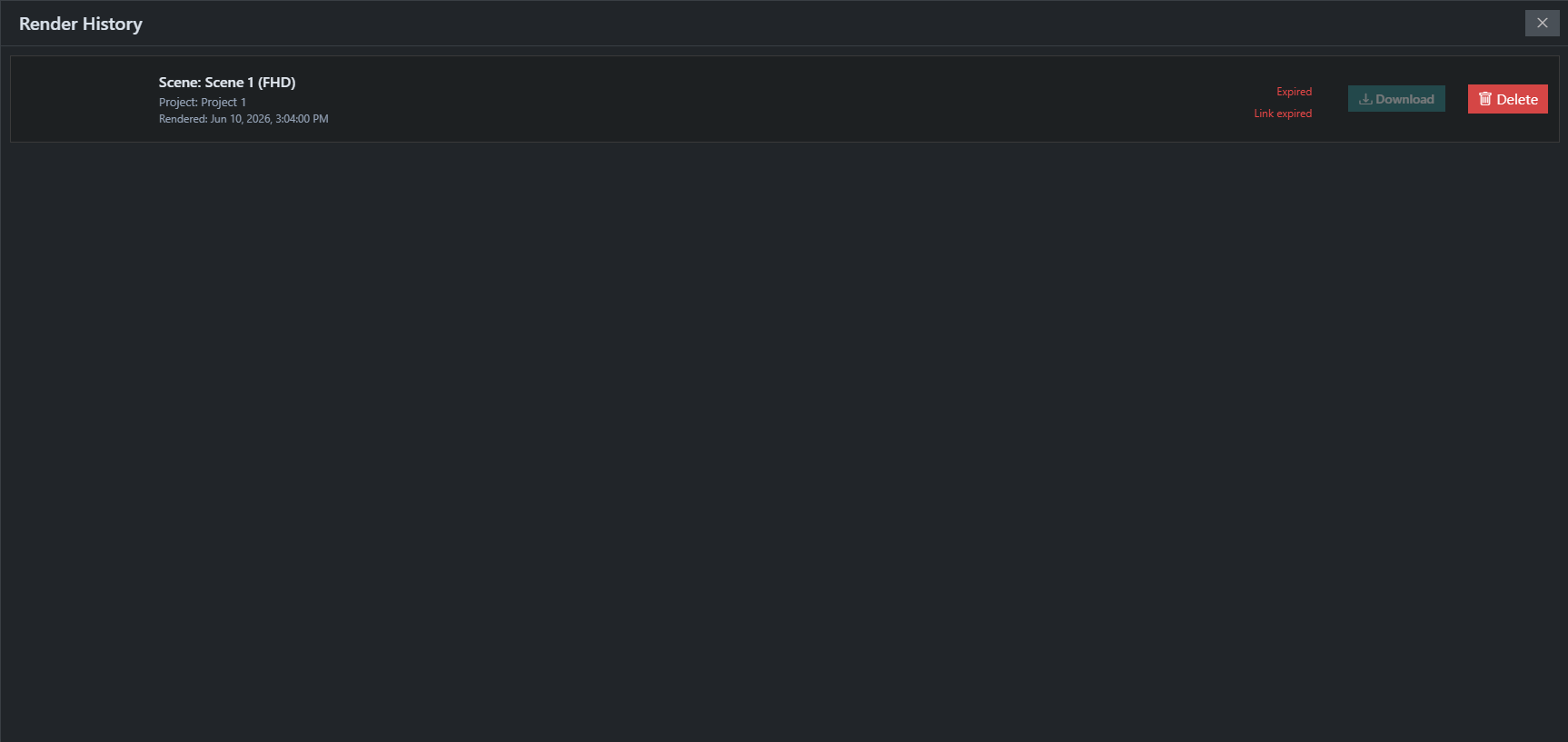
Section titled “Render History”The Render History section, available under Downloads, provides access to all previously rendered videos across your projects.
For example, if you are currently working in Project A and open the Downloads (Render History) section, you will be able to view render records from:
- Project A
- Project B
- Project C Any other projects in your workspace
Features
Section titled “Features”Users can:
- View render status
- Track rendering progress
- Download completed videos
- Delete old render records
Note
Download links for rendered videos expires in 4 hours after the render is completed. Be sure to download your files before the expiration period ends.
Each render entry includes its associated project information, render status, progress details, and downloadable output (if available).
Upgrade Subscription
Section titled “Upgrade Subscription”The Upgrade option provides quick access to subscription plans.
Users can upgrade directly from the Top Toolbar when additional rendering capabilities are required.
Benefits of upgrading may include:
- Access to 2K rendering
- Access to 4K rendering
- Faster rendering priority
- Premium assets
- Additional platform features
Accessing Upgrade Options
Section titled “Accessing Upgrade Options”To upgrade Subscription Plan:
- Click Upgrade from the Top Toolbar.
- Review available subscription plans.
- Select a suitable plan.
- Complete the payment process.
- Wait for subscription activation.
Premium features become available after successful activation.
Note
Subscription benefits and available plans may change as the platform evolves.
Benefits of the Top Toolbar
Section titled “Benefits of the Top Toolbar”The Top Toolbar provides:
- Faster project management
- Centralized controls
- Easy scene access
- Efficient rendering workflow
- Improved productivity
It acts as the primary command center for animation projects.
Summary
Section titled “Summary”The Top Toolbar is the main project management area in STPro Animator. It provides quick access to project information, saving, scene management, project settings, rendering tools, and account-related actions, helping users efficiently manage the complete animation workflow.
Next Step
Section titled “Next Step”Continue to the next documentation section to learn:
- Properties panel
- Position controls
- Scale and rotation settings
- Opacity and visual effects
- Keyframe-based animation adjustments