
My Assets
My Assets section stores all user-uploaded assets and imported media that can be reused across animation projects.
It provides a centralized location for managing custom content such as backgrounds, objects, audio files, videos, props, and characters.
Purpose of My Assets
Section titled “Purpose of My Assets”My Assets section helps users:
- Store custom assets
- Reuse imported content
- Organize project resources
- Access personal media quickly
- Build custom animation libraries
- Maintain consistent project workflows
All imported assets remain available for future projects unless removed by the user.
Accessing My Assets
Section titled “Accessing My Assets”To access My Assets:
- Open STPro Animator.
- Locate the left-side panel.
- Select My Assets.
- Browse available asset categories.
Imported assets are displayed according to their asset type.
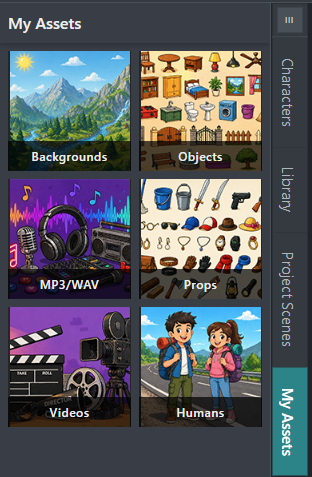
Asset Categories
Section titled “Asset Categories”My Assets organizes content into multiple categories.
Available categories include:
- Backgrounds
- Objects
- MP3 / WAV
- Props
- Videos
- Humans
Each category stores only the corresponding asset type.
Backgrounds
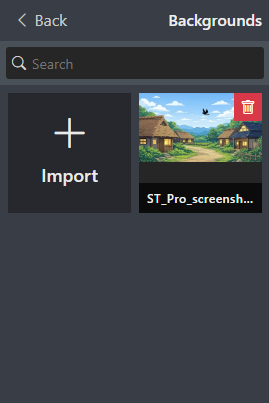
Section titled “Backgrounds”The Backgrounds category contains custom backgrounds uploaded by users.
Backgrounds can be used for:
- Indoor scenes
- Outdoor environments
- Educational content
- Business presentations
- Storytelling projects
Imported backgrounds can be added directly to scenes.
Objects
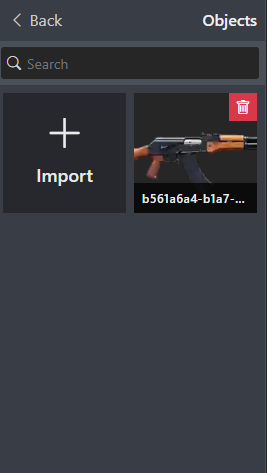
Section titled “Objects”The Objects category contains custom scene elements uploaded by users.
Examples include:
- Furniture
- Icons
- Decorations
- Equipment
- Custom graphics
Objects can be placed anywhere within the scene workspace.
MP3 / WAV
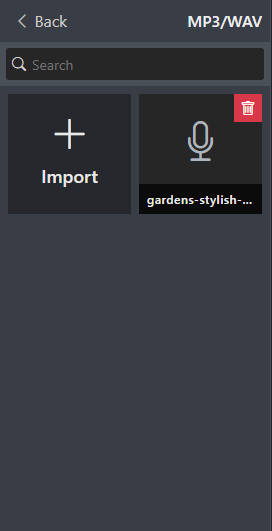
Section titled “MP3 / WAV”The MP3 / WAV category stores imported audio files.
Supported uses include:
- Voiceovers
- Narration
- Background music
- Sound effects
- Dialogue tracks
Audio files can be added to the timeline and synchronized with animations.
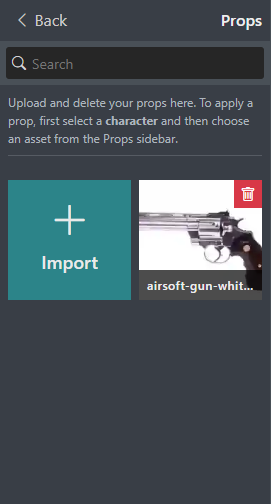
The Props category stores custom props uploaded by users.
Examples include:
- Accessories
- Scene items
- Character attachments
- Decorative elements
Imported props can be attached and positioned using the Props panel.
Videos
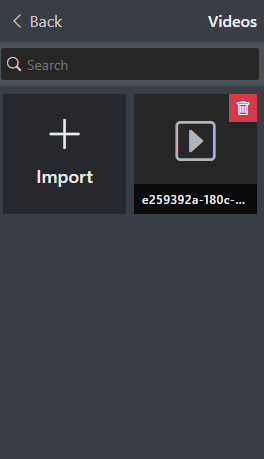
Section titled “Videos”The Videos category contains imported video files.
Videos can be used for:
- Video overlays
- Scene elements
- Background content
- Visual effects
- Reference media
Supported formats may vary depending on platform updates.
Humans
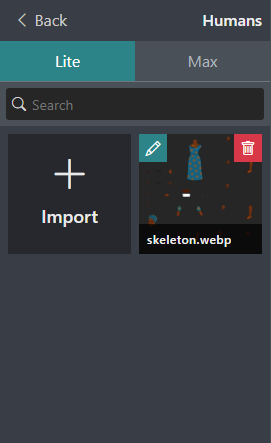
Section titled “Humans”The Humans category contains character assets available for animation projects.
Access to the Humans category is available only to paid users.
Human assets are divided into two categories:
Lite characters are imported from SaralToons-compatible character charts in .webp format.
Features:
- Imported from SaralToons character charts
- Supports
.webpcharacter files - Characters can be edited after import
- Suitable for lightweight animation workflows
Lite characters provide flexibility for users who want to customize and animate their own character designs.
Max characters are automatically added to My Assets after being rendered in STPro Actor.
Features:
- Generated through STPro Actor
- Automatically synchronized with STPro Animator
- Available immediately after successful rendering
- Includes advanced character capabilities
- Designed for enhanced animation workflows
Users do not need to manually upload Max characters. Rendered characters automatically appear in the Max category after synchronization is complete.
Upload Limits
Section titled “Upload Limits”Upload limits vary depending on the user’s subscription plan.
Free Users
Section titled “Free Users”Free users can upload assets with a combined storage limit of:
- 200 MB total storage
Paid Users
Section titled “Paid Users”Paid users receive:
- No fixed storage limit
- Subject to fair usage policies
Fair usage policies help ensure stable platform performance for all users.
Importing Assets
Section titled “Importing Assets”Users can import supported assets into My Assets.
Typical import workflow:
- Open My Assets.
- Select the desired category.
- Click Upload or Import.
- Choose the file from your device.
- Wait for the upload to complete.
The asset becomes available for immediate use.
Note
Human character imports are available only to paid users. Lite characters can be imported manually, while Max characters are automatically added after rendering through STPro Actor.
Using Imported Assets
Section titled “Using Imported Assets”Imported assets can be added to scenes at any time.
Users can:
- Drag assets into the workspace
- Apply animations
- Adjust properties
- Add assets to timelines
- Reuse assets across projects
This reduces the need to upload the same files repeatedly.
Asset Organization
Section titled “Asset Organization”For better asset management:
- Use descriptive file names
- Remove unused assets
- Group similar assets together
- Maintain organized media libraries
Proper organization improves workflow efficiency.
Benefits of My Assets
Section titled “Benefits of My Assets”The My Assets section provides:
- Centralized asset management
- Faster project creation
- Reusable content libraries
- Improved workflow efficiency
- Better content organization
- Support for custom media
Summary
Section titled “Summary”The My Assets section serves as a personal asset library within STPro Animator. Users can upload, organize, and reuse backgrounds, objects, audio files, props, videos, and character assets across multiple projects. Paid users can access Human assets, including editable Lite characters imported from SaralToons character charts and Max characters automatically generated through STPro Actor. The centralized asset system helps streamline production and improve workflow efficiency.
Next Step
Section titled “Next Step”Continue to the next section to learn about:
- Importing Human Lite characters
- Using custom
.webpcharacter charts - Managing characters in My Assets
- Editing character skins and slots
- Adjusting layer order and positioning
- Saving customized characters
- Reusing Human Lite characters across projects