
Rendering and Exporting
The Rendering and Exporting feature in STPro Animator allows users to convert animation projects into final video outputs that can be downloaded, shared, or published on different platforms.
After completing animation editing, users can render the project to generate a playable video file containing all scenes, animations, effects, and synchronized elements.
Purpose of Rendering and Exporting
Section titled “Purpose of Rendering and Exporting”Rendering and Exporting help users:
- Generate final animation videos
- Convert project data into playable media
- Export completed animations
- Share content across platforms
- Publish professional animation projects
This is the final stage of the animation production workflow.
What is Rendering?
Section titled “What is Rendering?”Rendering is the process of processing all animation elements into a final visual output.
During rendering, the system combines:
- Character animations
- Scene transitions
- Backgrounds
- Effects
- Timeline movements
- Audio synchronization
- Visual adjustments
The result is a completed video output ready for export.
Rendering Workflow
Section titled “Rendering Workflow”The rendering process follows multiple stages.
Step 1 — Complete the Animation Project
Section titled “Step 1 — Complete the Animation Project”Before rendering, users should finalize:
- Scene design
- Character movements
- Asset placement
- Timeline adjustments
- Audio synchronization
- Effects and transitions
Step 2 — Open Render Controls
Section titled “Step 2 — Open Render Controls”The Render option is available on the top toolbar of the STPro Animator workspace.
To access rendering:
- Complete the animation project.
- Locate the Render button in the top-right section of the toolbar.
- Click Render to open the rendering dialog.
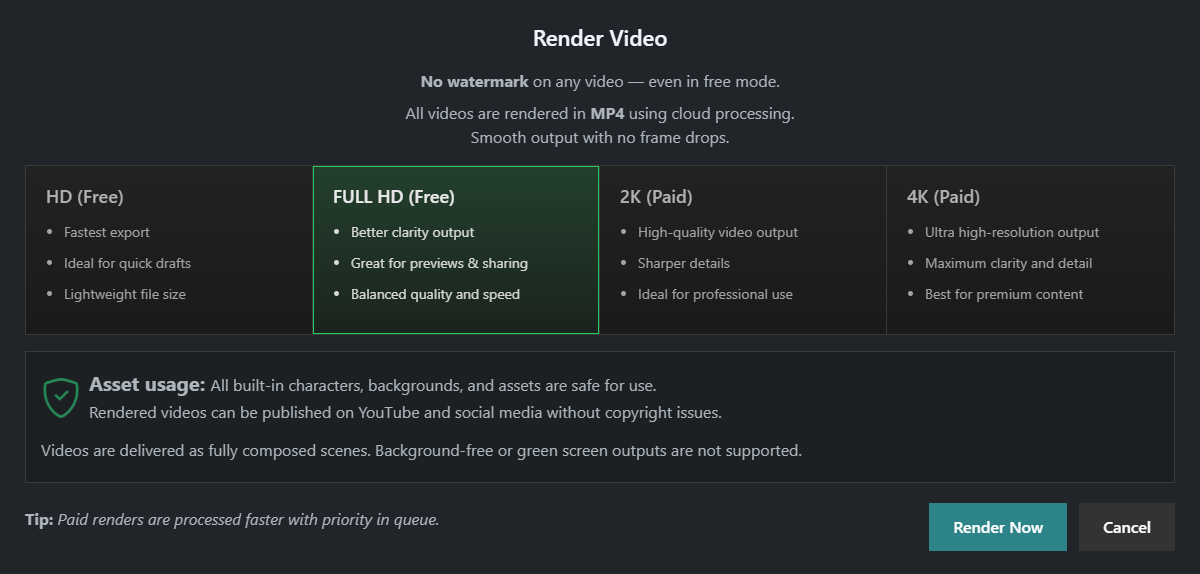
The rendering dialog displays available export quality options and rendering information.
Available Render Quality Options
Section titled “Available Render Quality Options”STPro Animator provides multiple rendering quality options.
Features:
- Fastest export option
- Ideal for quick drafts
- Lightweight file size
Full HD
Section titled “Full HD”Features:
- Better visual clarity
- Suitable for previews and sharing
- Balanced quality and rendering speed
Features:
- Higher-quality video output
- Sharper visual details
- Suitable for professional projects
Features:
- Ultra high-resolution output
- Maximum detail and clarity
- Best for premium-quality content
Note
2K and 4K rendering options require an active subscription plan.
Frame Rate
Section titled “Frame Rate”All rendered videos are currently exported at a fixed frame rate of 30 FPS (Frames Per Second).
What is FPS?
Section titled “What is FPS?”FPS (Frames Per Second) determines how many individual frames are displayed every second in the final video.
A higher frame rate generally results in smoother motion and playback.
Current Behavior
Section titled “Current Behavior”- All rendered videos are exported at 30 FPS
- The frame rate is automatically applied during rendering
- Users do not need to configure FPS settings
- The frame rate remains consistent across all supported render quality options
Limitations
Section titled “Limitations”Note
The frame rate cannot currently be changed manually. STPro Animator automatically renders all videos at 30 FPS regardless of the selected render resolution.
Step 3 — Start Rendering
Section titled “Step 3 — Start Rendering”After selecting the preferred render quality:
- Click Render Now.
- The project is added to the rendering queue.
- STPro Studio processes the animation using cloud rendering technology.
During rendering:
- Animation frames are processed
- Scene data is compiled
- Effects are generated
- Audio is synchronized
- Final MP4 output is prepared
Rendering time depends on project complexity and selected quality.
Step 4 — Processing Completion
Section titled “Step 4 — Processing Completion”After rendering finishes:
- The final video becomes available
- Users can preview the output
- Download option appear
Output Format
Section titled “Output Format”All rendered videos are exported in MP4 format at 30 FPS.
Features include:
- MP4 video output
- Fixed 30 FPS frame rate
- Cloud-based processing
- Smooth playback output
- No frame drops
- Platform-ready video delivery
Asset Usage and Licensing
Section titled “Asset Usage and Licensing”All built-in STPro Animator assets are safe for use.
This includes:
- Characters
- Backgrounds
- Objects
- Visual assets
Rendered videos can be published on:
- YouTube
- Social media platforms
- Educational platforms
- Marketing channels
without copyright issues related to built-in STPro assets.
Note
Background-free or green-screen video exports are currently not supported.
Rendering and Timeline Integration
Section titled “Rendering and Timeline Integration”The rendering system processes animation data directly from the timeline.
This includes:
- Keyframes
- Layer arrangements
- Motion timing
- Scene sequencing
- Playback synchronization
Accurate timeline management improves final render quality.
Rendering Quality
Section titled “Rendering Quality”Rendering quality depends on multiple factors.
Factors Affecting Quality
Section titled “Factors Affecting Quality”- Asset resolution
- Scene complexity
- Animation smoothness
- Effect usage
- Browser performance
- System resources
Higher-quality scenes may require longer rendering time.
Rendering Duration
Section titled “Rendering Duration”Rendering time varies based on:
- Project length
- Number of assets
- Visual effects
- Animation complexity
- Audio synchronization
- Device performance
Note
Large projects, high-resolution exports, and complex scenes may require additional processing time before the final video becomes available.
Simple projects render faster, while large projects may require additional processing time.
Preview Before Export
Section titled “Preview Before Export”Before downloading the final output, users should verify:
- Animation timing
- Scene transitions
- Character visibility
- Audio synchronization
- Orientation settings
- Visual consistency
Previewing helps avoid export errors.
Performance Considerations
Section titled “Performance Considerations”For smoother rendering performance, users should:
- Close unnecessary browser tabs
- Maintain stable internet connection
- Reduce excessive scene complexity
- Optimize asset usage
- Save projects regularly
Efficient project organization improves rendering reliability.
Benefits of Rendering and Exporting
Section titled “Benefits of Rendering and Exporting”The Rendering and Exporting system provides:
- Professional video generation
- Browser-based rendering workflow
- Flexible content publishing
- High-quality animation output
- Platform-ready exports
- Simplified production pipeline
Best Practices
Section titled “Best Practices”For better rendering results:
- Preview projects before export
- Organize timeline layers properly
- Use optimized assets
- Maintain balanced scene complexity
- Verify synchronization carefully
These practices help produce smoother final videos.
Summary
Section titled “Summary”The Rendering and Exporting feature in STPro Animator converts completed animation projects into final downloadable video outputs. By processing scenes, animations, timeline data, effects, and synchronized assets, the system enables users to create professional-quality animated videos suitable for education, storytelling, social media, marketing, and digital content creation workflows.
Next Step
Section titled “Next Step”Continue to the next documentation section to learn:
- Resetting project and asset settings
- Restoring default configurations
- Correcting unwanted modifications
- Maintaining a clean animation workspace