
Character
Characters are the primary animated elements used to create stories, presentations, educational content, and engaging visual experiences in STPro Animator.
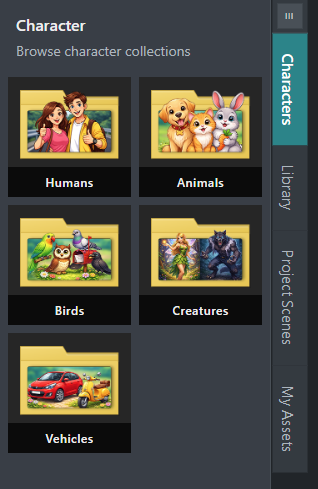
The Characters panel provides access to a collection of ready-to-use animated characters organized into multiple categories.
Purpose of the Characters Panel
Section titled “Purpose of the Characters Panel”The Characters panel helps users:
- Add characters to scenes
- Build storytelling animations
- Create engaging presentations
- Populate scenes with people, animals, and vehicles
- Quickly access animation-ready assets
- Create dynamic and professional content
Characters can be combined with backgrounds, props, animations, and audio to build complete scenes.
Accessing the Characters Panel
Section titled “Accessing the Characters Panel”To access characters:
- Open a project in STPro Animator.
- Locate the left-side asset panel.
- Select the Characters tab.
- Browse available character categories.
- Select and add a character to the scene.
Searching Characters
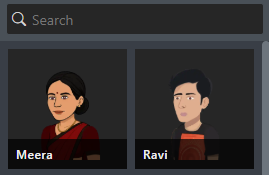
Section titled “Searching Characters”The Characters panel includes a search bar.
Users can:
- Search by character name
- Quickly locate specific assets
- Reduce browsing time
- Access characters faster
Character Categories
Section titled “Character Categories”Characters are organized into the following categories:
- Humans
- Animals
- Birds
- Vehicles
- Creatures
Each category contains assets designed for different animation scenarios.
Human Characters
Section titled “Human Characters”The Human category contains animated human characters suitable for:
- Educational videos
- Storytelling projects
- Business presentations
- Marketing content
- Social media videos
The Human category is divided into two collections.
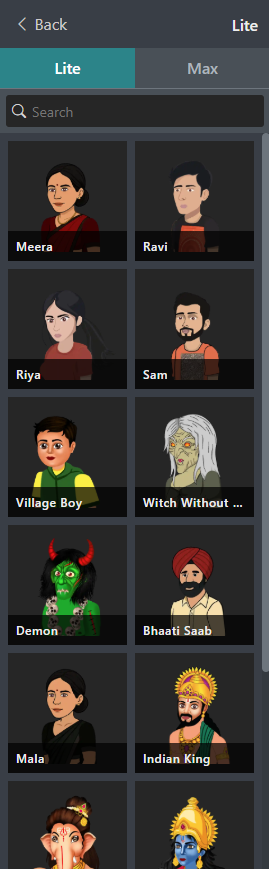
Lite Characters
Section titled “Lite Characters”Lite characters are provided through the SaralToons collection.
Features:
- Lightweight assets
- Quick loading
- Suitable for general-purpose animations
- Beginner-friendly character selection
MAX Characters
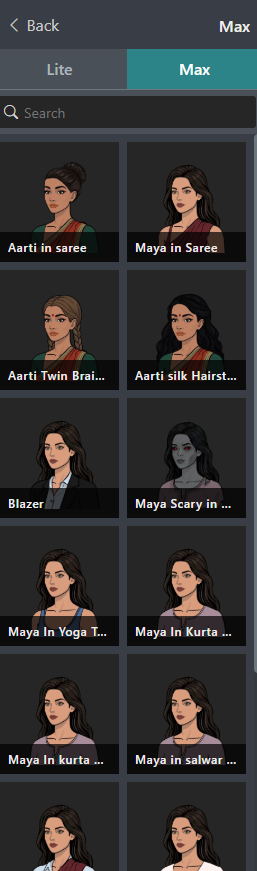
Section titled “MAX Characters”MAX characters are provided by STPro Studio.
Features:
- Premium-quality assets
- Enhanced visual appearance
- Detailed character designs
- Professional animation projects
Animal Characters
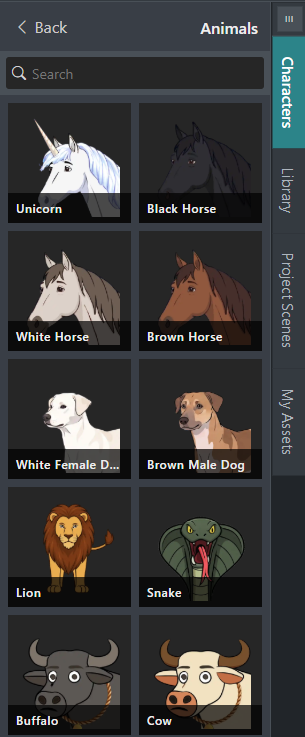
Section titled “Animal Characters”The Animals category contains various animal characters.
Examples include:
- Dogs
- Horses
- Unicorns
- Other animal-based characters
Animal characters can be used in:
- Educational content
- Children’s animations
- Storytelling projects
- Entertainment videos
Bird Characters
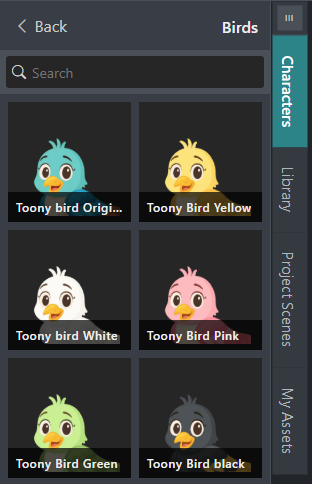
Section titled “Bird Characters”The Birds category contains animated bird characters.
Examples include:
- Toony Bird Blue
- Toony Bird Yellow
- Toony Bird White
- Toony Bird Pink
- Toony Bird Green
- Toony Bird Black
Bird characters are useful for:
- Children’s content
- Cartoon animations
- Educational videos
- Nature-themed stories
Vehicle Characters
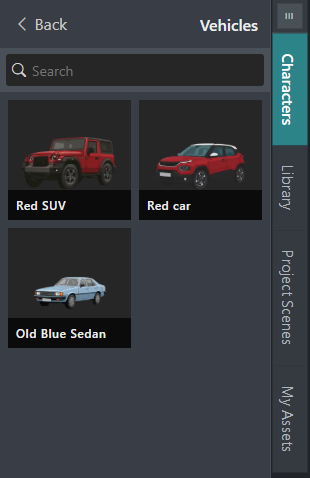
Section titled “Vehicle Characters”The Vehicles category contains animated vehicle assets that can be added to scenes and customized with drivers and passengers.
Examples include:
- Cars
- SUVs
- Transportation assets
- Other vehicle-based scene elements
Vehicle characters can be used in:
- Traffic scenes
- City environments
- Educational content
- Storytelling projects
- Travel and transportation scenarios
Adding a Vehicle
Section titled “Adding a Vehicle”To add a vehicle to your scene:
- Open the Characters panel.
- Select the Vehicles category.
- Choose a vehicle and add it to the scene.
Once a vehicle is selected, additional vehicle-specific controls become available.
Driver and Passenger Management
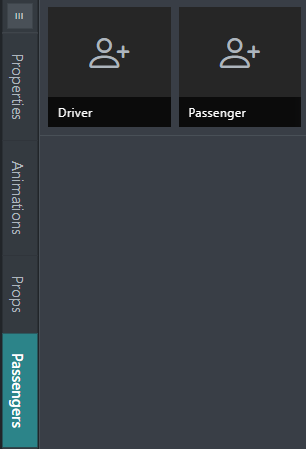
Section titled “Driver and Passenger Management”When a vehicle is selected, a Passengers panel appears on the right side of the editor, below the Props section.
The panel contains two categories:
- Driver
- Passenger
These categories allow you to assign animated characters to available seats inside the vehicle.
Seat Availability
Section titled “Seat Availability”The number of available driver and passenger slots depends on the selected vehicle type and viewing angle.
For example:
Car: 3–4 Front View
Section titled “Car: 3–4 Front View”Available seats:
- 1 Driver
- Up to 4 Passengers
Different vehicle models and views may provide different seating capacities.
Selecting Drivers and Passengers
Section titled “Selecting Drivers and Passengers”Selecting a seat category automatically displays the available character list for that seat type.
Driver
Section titled “Driver”- Select Driver from the Passengers panel.
- Browse the available driver characters.
- Choose a character to assign to the driver’s seat.
Passenger
Section titled “Passenger”- Select Passenger from the Passengers panel.
- Browse the available passenger characters.
- Choose characters for the available passenger seats.
The available character options are automatically filtered based on the selected vehicle configuration.
Automatic Character Attachment
Section titled “Automatic Character Attachment”Drivers and passengers are automatically attached to the vehicle once assigned.
This means:
- Characters remain fixed to their seats.
- Characters move together with the vehicle.
- No manual repositioning is required after setup.
- Driver and passenger placement is maintained during scene editing.
For example, if the vehicle is moved, rotated, or animated, all assigned drivers and passengers will follow automatically.
Vehicle Animations
Section titled “Vehicle Animations”Vehicles support animation workflows, including custom FK animations.
Importing Vehicle Animations
Section titled “Importing Vehicle Animations”To import an FK animation for a vehicle:
- Select the vehicle in the scene.
- Open the Animations tab.
- Click Import.
- Choose the desired FK animation file.
- Apply the animation to the selected vehicle.
Imported FK animations can be used to create custom vehicle movements and motion sequences.
Supported Use Cases
Section titled “Supported Use Cases”- Driving sequences
- Traffic movement
- Vehicle entrances and exits
- Storytelling scenes
- Custom transportation animations
- Driver and passenger seats are vehicle-dependent.
- Available seats vary based on the selected vehicle model and side/view configuration.
- Assigned characters automatically remain attached to the vehicle.
- Vehicle movement does not require separate character adjustments.
- Custom FK animations can be imported and applied directly to vehicles.
Creatures
Section titled “Creatures”The Creatures category is currently under development.
Coming Soon
Additional fantasy and creature-based characters will be added in future updates.
Working with Multiple Characters
Section titled “Working with Multiple Characters”A scene can contain multiple characters.
Users can:
- Add different character types
- Create conversations
- Build group scenes
- Design storytelling sequences
Example:
- Teacher character
- Student character
- Animal character
- Vehicle asset
All can exist within the same scene.
Character Workflow Example
Section titled “Character Workflow Example”A common workflow:
- Open Characters panel.
- Select a category.
- Add a character.
- Position the character.
- Apply animations.
- Add props if needed.
- Adjust properties.
- Preview the scene.
Best Practices
Section titled “Best Practices”For best results:
- Choose characters that match the scene context
- Use animations to create natural movement
- Combine characters with props and backgrounds
- Maintain consistent visual style
- Preview scenes before rendering
Benefits of the Characters Panel
Section titled “Benefits of the Characters Panel”The Characters panel provides:
- Ready-to-use animated characters
- Multiple asset categories
- Fast scene creation
- Search functionality
- Animation-ready assets
- Professional content creation workflow
Summary
Section titled “Summary”The Characters panel is the primary source for adding animated assets to scenes in STPro Animator. Users can choose from Humans, Animals, Birds, and Vehicles, while the Creatures category is planned for future releases. Human characters are further divided into Lite (SaralToons) and MAX (STPro Studio) collections, providing options for both simple and professional animation projects.
Next Step
Section titled “Next Step”Continue to the next documentation section to learn:
- Library assets
- Background collections
- Objects and overlays
- Audio assets
- VFX resources