
Library
The Library contains scene-building assets that help users create rich and engaging animations without creating assets from scratch.
Library assets can be added directly to scenes and combined with characters, props, animations, and effects.
The Library is available from the left-side asset panel inside STPro Animator.
Purpose of the Library
Section titled “Purpose of the Library”The Library helps users:
- Build scenes faster
- Access ready-to-use assets
- Create realistic environments
- Add visual effects
- Improve storytelling
- Enhance animation quality
It serves as the primary source for scene assets and visual elements.
Accessing the Library
Section titled “Accessing the Library”To access the Library:
- Open a project in STPro Animator.
- Navigate to the left-side asset panel.
- Select the Library tab.
- Choose an asset category.
- Browse and add assets to your scene.
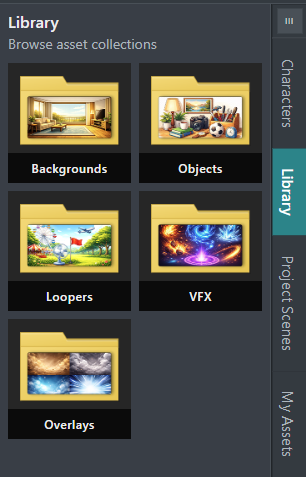
Available Categories
Section titled “Available Categories”The Library contains the following categories:
- Backgrounds
- Objects
- Loopers
- VFX
- Overlays
Each category serves a different purpose within the animation workflow.
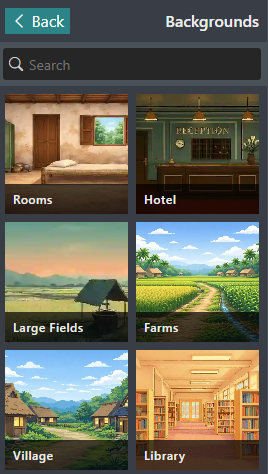
Backgrounds
Section titled “Backgrounds”Backgrounds define the environment of a scene.
Examples include:
- Classrooms
- Offices
- Homes
- Outdoor locations
- Nature scenes
- Business environments
Backgrounds help establish scene context and visual atmosphere.
To add a background:
- Open the Backgrounds category.
- Select a background.
- Click the asset.
The selected background is added to the scene automatically.
Objects
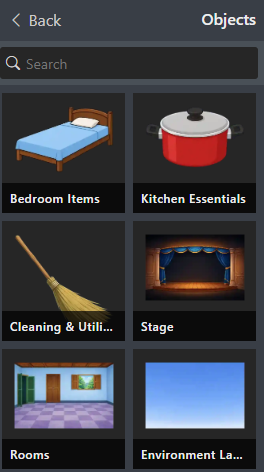
Section titled “Objects”Objects are scene elements that help create detailed environments.
Examples include:
- Furniture
- Office equipment
- Household items
- Educational tools
- Decorative assets
- Business accessories
Objects can be placed anywhere in the scene and adjusted using the Properties panel.
Loopers
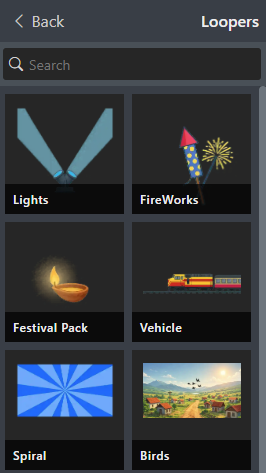
Section titled “Loopers”Loopers are animated assets that continuously repeat their motion.
Examples may include:
- Walking characters
- Crowd animations
- Environmental movements
- Repeating character actions
Loopers are useful for creating active and dynamic scenes.
Adjustable Duration
Section titled “Adjustable Duration”Unlike VFX assets, Loopers allow users to adjust their duration on the Timeline.
Users can:
- Increase duration
- Reduce duration
- Extend looping animations
- Match scene timing
This makes Loopers flexible for long scenes and background activity.
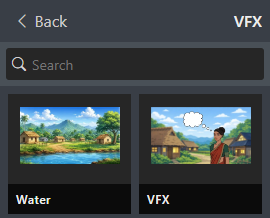
VFX (Visual Effects) assets add special effects to scenes.
Examples include:
- Smoke
- Fire
- Dust
- Magic effects
- Sparkles
- Environmental effects
Visual effects help enhance scene quality and storytelling.
Fixed Duration
Section titled “Fixed Duration”VFX assets have a predefined duration.
Users cannot extend or shorten the internal effect animation length.
The effect plays for its designed duration once added to the scene.
Overlays
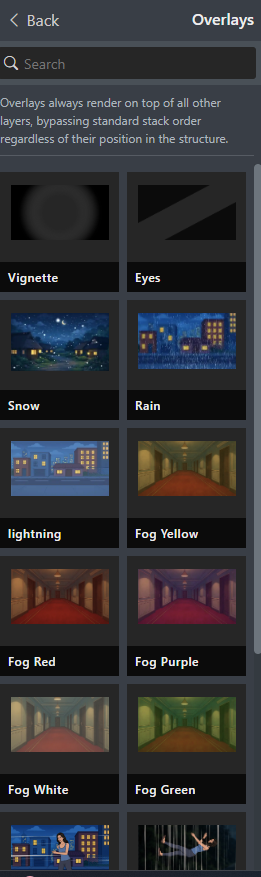
Section titled “Overlays”Overlays are visual elements displayed above scene content to enhance the overall look and feel of a video.
Examples include:
- Light leaks
- Lens effects
- Weather effects
- Atmospheric effects
- Decorative overlays
Overlays help create mood, improve visual storytelling, and add cinematic effects to scenes.
Adding an Overlay
Section titled “Adding an Overlay”To add an overlay:
- Open the Overlays library.
- Select an overlay effect.
- Add it to the scene.
- Adjust its properties as needed.
The selected overlay is displayed above all scene elements.
Overlay Properties
Section titled “Overlay Properties”When an overlay is selected, the following properties become available:
Opacity
Section titled “Opacity”Controls the transparency of the overlay.
- Lower values make the overlay more transparent.
- Higher values make the overlay more visible.
- Useful for creating subtle or strong visual effects.
Controls the amount of blur applied to the overlay.
- Lower values keep the overlay sharp.
- Higher values create a softer and more diffused appearance.
- Commonly used for atmospheric and cinematic effects.
Keyframe Animation
Section titled “Keyframe Animation”Overlay properties support keyframe animation.
You can animate:
- Opacity
- Blur
Adding Keyframes
Section titled “Adding Keyframes”- Select the overlay.
- Move the timeline playhead to the desired position.
- Adjust a property value.
- Add a keyframe.
- Move to another point on the timeline and change the property value.
The overlay will automatically animate between keyframes.
Searching Assets
Section titled “Searching Assets”The Library includes a search feature.
Users can:
- Search asset names
- Quickly locate content
- Reduce browsing time
- Find assets faster
Combining Library Assets
Section titled “Combining Library Assets”Library assets can be combined with:
- Characters
- Props
- Animations
- Backgrounds
- Audio
Example scene:
- Classroom background
- Teacher character
- Student character
- Desk object
- Ambient overlay
Combining multiple asset types creates richer scenes.
Best Practices
Section titled “Best Practices”For best results:
- Add backgrounds before characters
- Use objects to support storytelling
- Extend Loopers when longer animations are required
- Use VFX sparingly for emphasis
- Avoid overcrowding scenes
- Preview scenes before rendering
Benefits of the Library
Section titled “Benefits of the Library”The Library provides:
- Ready-to-use assets
- Faster scene creation
- Improved storytelling
- Better visual quality
- Professional animation workflows
- Creative flexibility
Summary
Section titled “Summary”The Library is the central asset collection within STPro Animator. It provides Backgrounds, Objects, Loopers, VFX, and Overlays that help users build complete scenes quickly. Loopers support adjustable durations, while VFX assets use fixed-duration effects. Together, these assets help create engaging and professional-quality animations.
Next Step
Section titled “Next Step”Continue to the next documentation section to learn:
- My Assets
- Uploading custom assets
- Managing personal content
- Reusing imported assets
- Asset organization