
Skin Colors
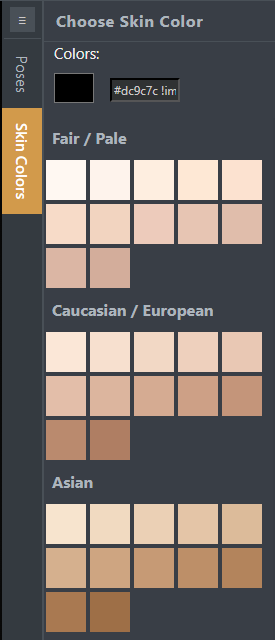
The Skin Colors section in STPro Actor allows users to personalize character appearance by selecting different skin tones.
Skin color customization helps users create diverse and unique human characters that better fit their stories, audiences, and animation requirements.
Purpose of Skin Color Customization
Section titled “Purpose of Skin Color Customization”Skin Color Customization helps users:
- Personalize character appearance
- Create diverse actors
- Match character identity and design goals
- Improve visual consistency
- Build more realistic characters
Accessing Skin Colors
Section titled “Accessing Skin Colors”To access skin color options:
- Open an Actor project.
- Navigate to the customization panel.
- Select the Skin Colors category.
- Available skin tone options appear in the selection area.
Available Skin Tones
Section titled “Available Skin Tones”STPro Actor provides multiple skin tone options for character customization.
Users can:
- Browse available skin colors
- Preview different tones
- Select preferred skin colors
- Modify selections at any time
Additional skin tone options may become available in future updates.
Applying a Skin Color
Section titled “Applying a Skin Color”To apply a skin color:
- Open the Skin Colors section.
- Browse available skin tone options.
- Select the desired skin color.
- The character preview updates automatically.
The selected skin tone is applied immediately.
Real-Time Preview
Section titled “Real-Time Preview”All skin color changes are displayed instantly in the preview area.
This allows users to:
- Compare different skin tones
- Verify overall character appearance
- Match colors with clothing and makeup
- Create balanced character designs
Skin Color Compatibility
Section titled “Skin Color Compatibility”Skin color selections work together with:
- Head styles
- Body types
- Clothing selections
- Makeup options
- Pose settings
The system automatically applies compatible appearance settings.
Modifying Skin Colors
Section titled “Modifying Skin Colors”Users can update skin colors at any time.
To change the skin color:
- Open the Skin Colors section.
- Select another available skin tone.
- The previous selection is replaced automatically.
- The preview updates instantly.
Creating Consistent Character Designs
Section titled “Creating Consistent Character Designs”When selecting skin colors, users should consider:
- Character identity
- Clothing combinations
- Makeup selections
- Overall visual style
- Project requirements
Careful selection helps maintain a professional and consistent character appearance.
Benefits of Skin Color Customization
Section titled “Benefits of Skin Color Customization”Skin Color Customization provides:
- Greater character diversity
- Flexible appearance control
- Enhanced personalization
- Improved visual design
- Better storytelling possibilities
Summary
Section titled “Summary”The Skin Colors section allows users to customize and personalize character skin tones inside STPro Actor. Through real-time previews and flexible selection options, users can create diverse, realistic, and visually appealing human actors for animation projects.
Next Step
Section titled “Next Step”Continue to the next documentation section to learn:
- Used Items Panel
- Tracking applied customizations
- Managing selected character assets
- Reviewing actor configurations