
Top Toolbar
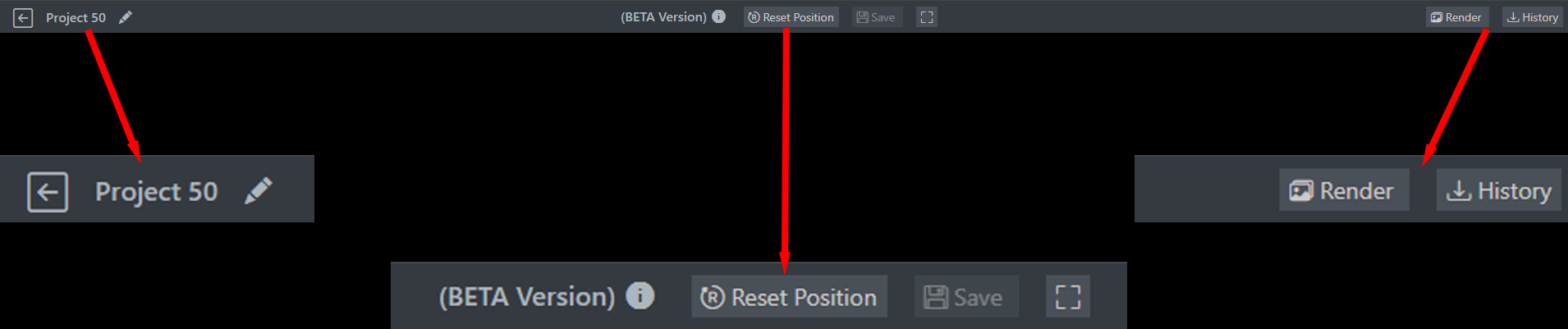
The Top Toolbar is located at the top of the STPro Actor interface and provides quick access to important actor management, preview, saving, and rendering functions.
It serves as the primary action center for character creation workflows.
Purpose of the Top Toolbar
Section titled “Purpose of the Top Toolbar”The Top Toolbar allows users to:
- Save actor progress
- Preview character changes
- Reset character position
- Render actors
- Access render history
- Manage actor workflows
These tools help streamline the actor creation process.
Toolbar Overview
Section titled “Toolbar Overview”The Top Toolbar contains controls that affect the entire actor project rather than individual customization categories.
Common actions include:
- Save
- Preview
- Reset Position
- Render
- Render History
Save Button
Section titled “Save Button”The Save button stores the current actor configuration.
Functions
Section titled “Functions”- Saves character customizations
- Preserves clothing selections
- Stores pose settings
- Protects project progress
Users should save frequently while editing.
Note
Unsaved changes may be lost if the browser is refreshed, closed, or if another actor project is opened.
Regular saving is strongly recommended.
Preview Controls
Section titled “Preview Controls”Preview controls allow users to inspect the actor before rendering.
Users can:
- View character appearance
- Check clothing combinations
- Review makeup settings
- Verify poses
- Inspect overall design
Previewing helps identify adjustments before rendering.
Reset Position
Section titled “Reset Position”The Reset Position tool restores the actor to its default viewing position.
- Recenter the actor
- Correct unwanted view adjustments
- Improve visibility during editing
- Return to the default workspace orientation
This tool does not affect character customization settings.
Render Button
Section titled “Render Button”The Render button begins the actor rendering process.
Rendering converts the customized actor into a finalized rigged character asset that can be used inside STPro Animator.
During rendering, the system generates the required character rig so that the actor is ready for animation workflows inside Animator.
Before Rendering
Section titled “Before Rendering”Users should:
- Save progress
- Verify customizations
- Check clothing selections
- Confirm poses
- Review appearance settings
Note
Rendering requires an active subscription plan.
Users without an active subscription can customize and preview actors but cannot render them.
Render Output
Section titled “Render Output”After successful rendering:
- A rigged character is generated
- Character customization data is processed
- Animation-ready assets are created
- The actor becomes available in STPro Animator
- The character can be used in animation projects without additional setup
The rendered actor is prepared for animation workflows immediately after synchronization is completed.
Render History
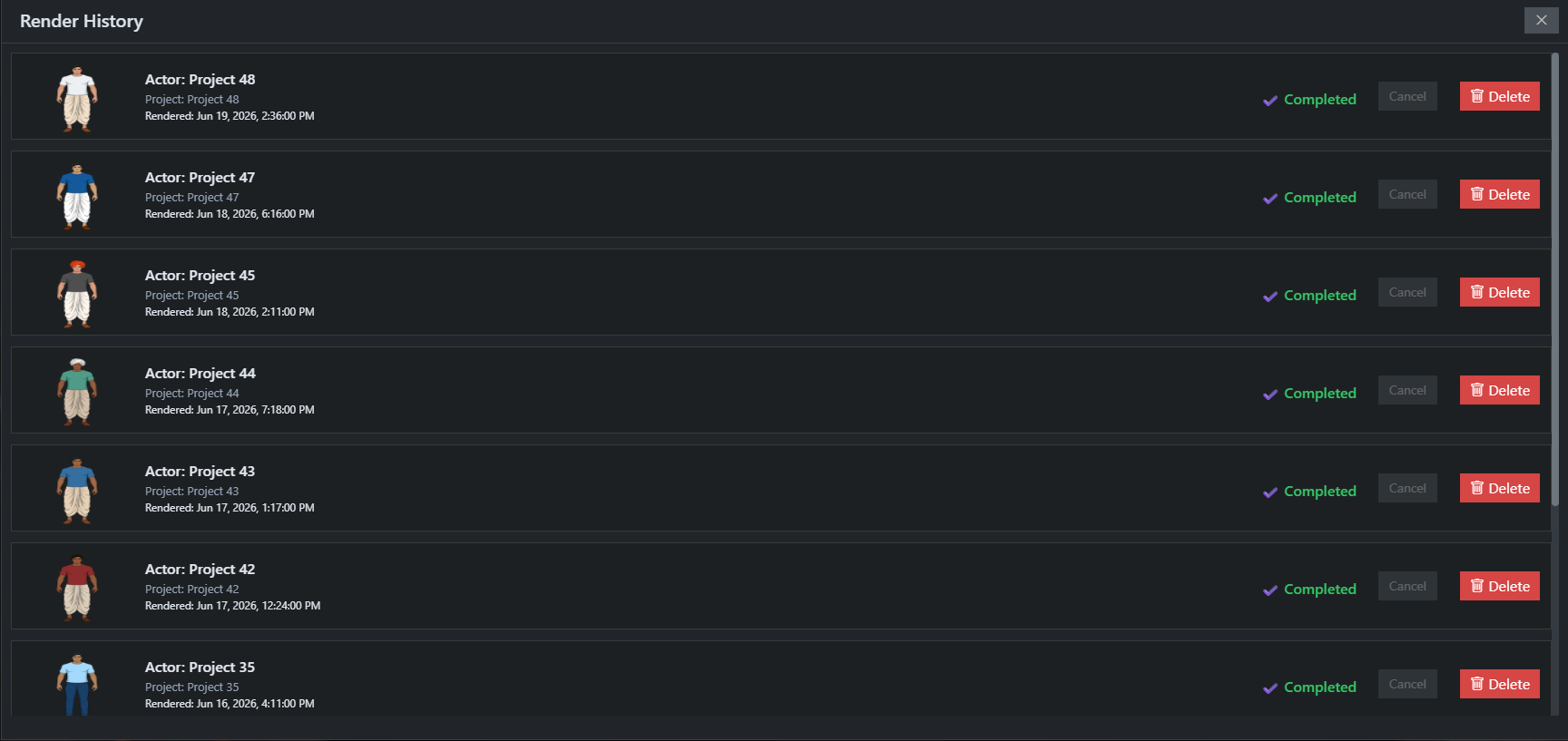
Section titled “Render History”The Render History option allows users to track previously rendered actors.
Users can:
- View completed renders
- Monitor rendering activity
- Access rendered actor records
- Verify successful rendering status
Render History helps manage character production workflows.
Typical Workflow
Section titled “Typical Workflow”A common workflow using the Top Toolbar is:
- Customize the actor.
- Save progress.
- Preview the actor.
- Reset position if required.
- Render the actor.
- Verify completion in Render History.
Supported Input Devices
Section titled “Supported Input Devices”STPro Actor currently supports keyboard-based interaction for various editing and navigation workflows.
Supported Device
Section titled “Supported Device”- Keyboard
Keyboard input may be used for:
- Interface navigation
- Shortcut operations
- Workflow management
- General project interaction
Additional input device support may be introduced in future platform updates.
Benefits of the Top Toolbar
Section titled “Benefits of the Top Toolbar”The Top Toolbar provides:
- Faster workflow management
- Centralized project controls
- Easy access to rendering tools
- Better project organization
- Efficient actor creation process
Summary
Section titled “Summary”The Top Toolbar is the main action area in STPro Actor. It provides essential tools for saving progress, previewing actors, resetting positions, rendering customized characters, and accessing render history. These controls help users efficiently manage actor creation from start to final output.
Next Step
Section titled “Next Step”Continue to the next documentation section to learn:
- Saving actor progress
- Preventing loss of customization changes
- Managing actor projects
- Best practices for saving work