
Login and Registration
STPro Studio provides a secure authentication system that allows users to create accounts and access the platform safely.
Users can register and log in using:
- Google Authentication
- Email Authentication
Both methods provide access to the STPro Studio .
Opening the Login Page
Section titled “Opening the Login Page”To begin authentication:
- Open a supported web browser.
- Visit:
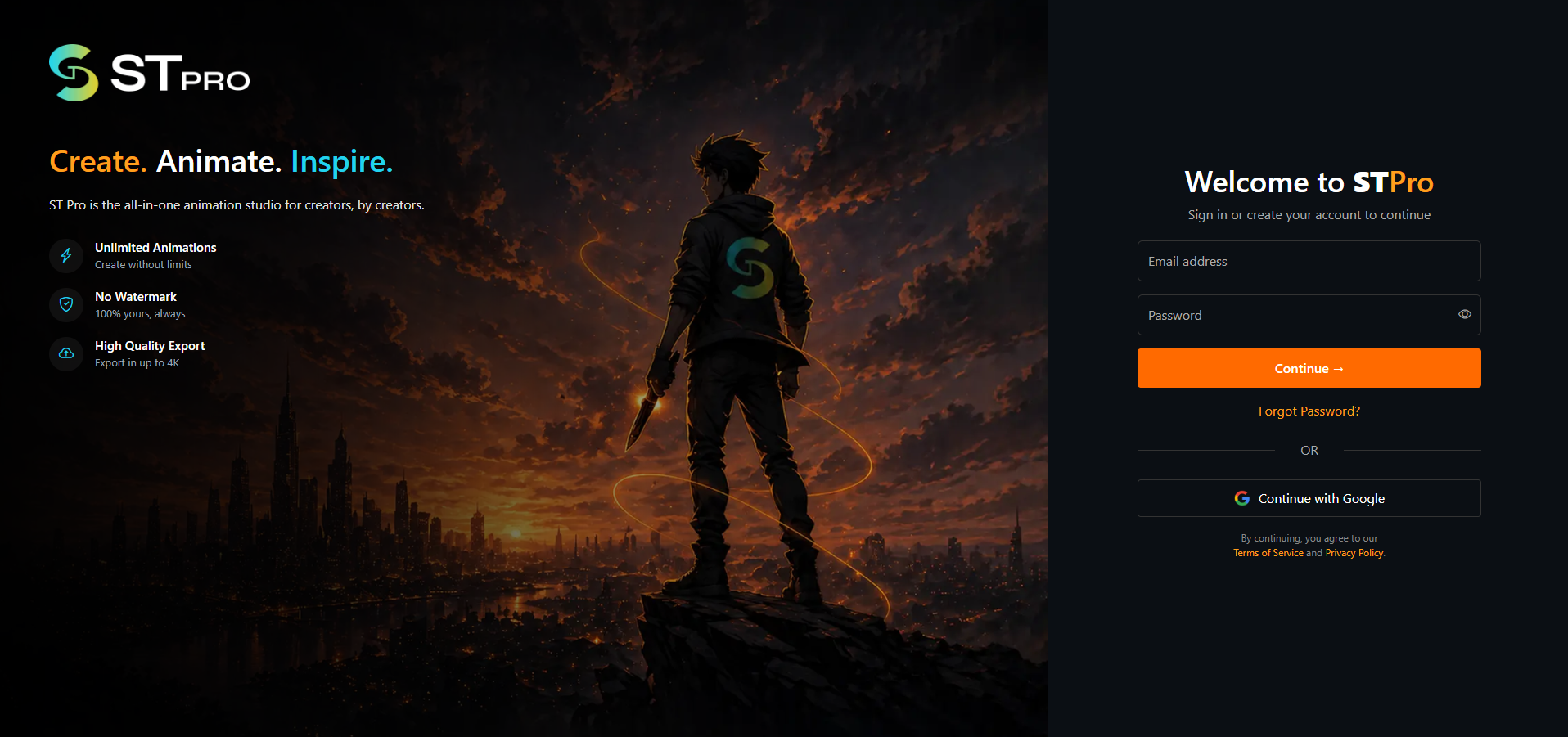
- The STPro Studio login page will appear.
From this screen, users can either:
- Continue with Google
- Register using email
- Log in using existing credentials
Authentication Methods
Section titled “Authentication Methods”STPro Studio currently supports two authentication methods.
- Google Authentication
- Users can quickly sign in using a Google account.
- Email Authentication
- Users can create accounts manually using an email address and password.
- This method includes email verification for account security.
Register with Google
Section titled “Register with Google”Steps to Continue with Google
Section titled “Steps to Continue with Google”Step 1 — Open Login Page
Section titled “Step 1 — Open Login Page”Visit:
Step 2 — Click “Continue with Google”
Section titled “Step 2 — Click “Continue with Google””Select the Google authentication option on the login screen.

Step 3 — Choose Google Account
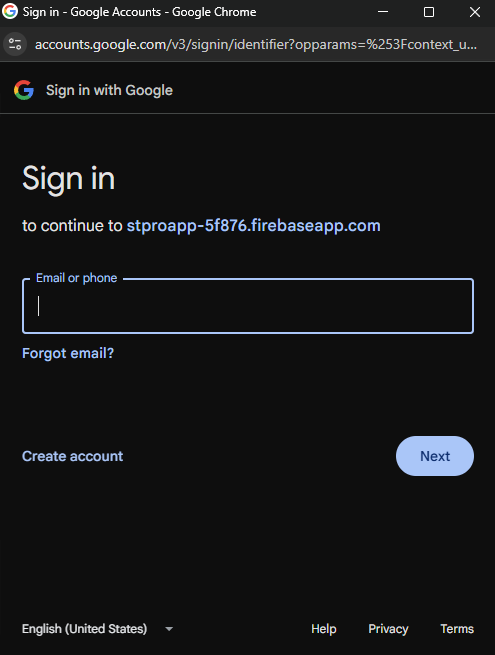
Section titled “Step 3 — Choose Google Account”A Google account selection window appears.
Users should:
- Select an existing Google account
- Or sign in to another Google account
Step 4 — Grant Permissions
Section titled “Step 4 — Grant Permissions”Google may request authentication permissions.
Approve the required permissions to continue.
Step 5 — Redirect to Dashboard
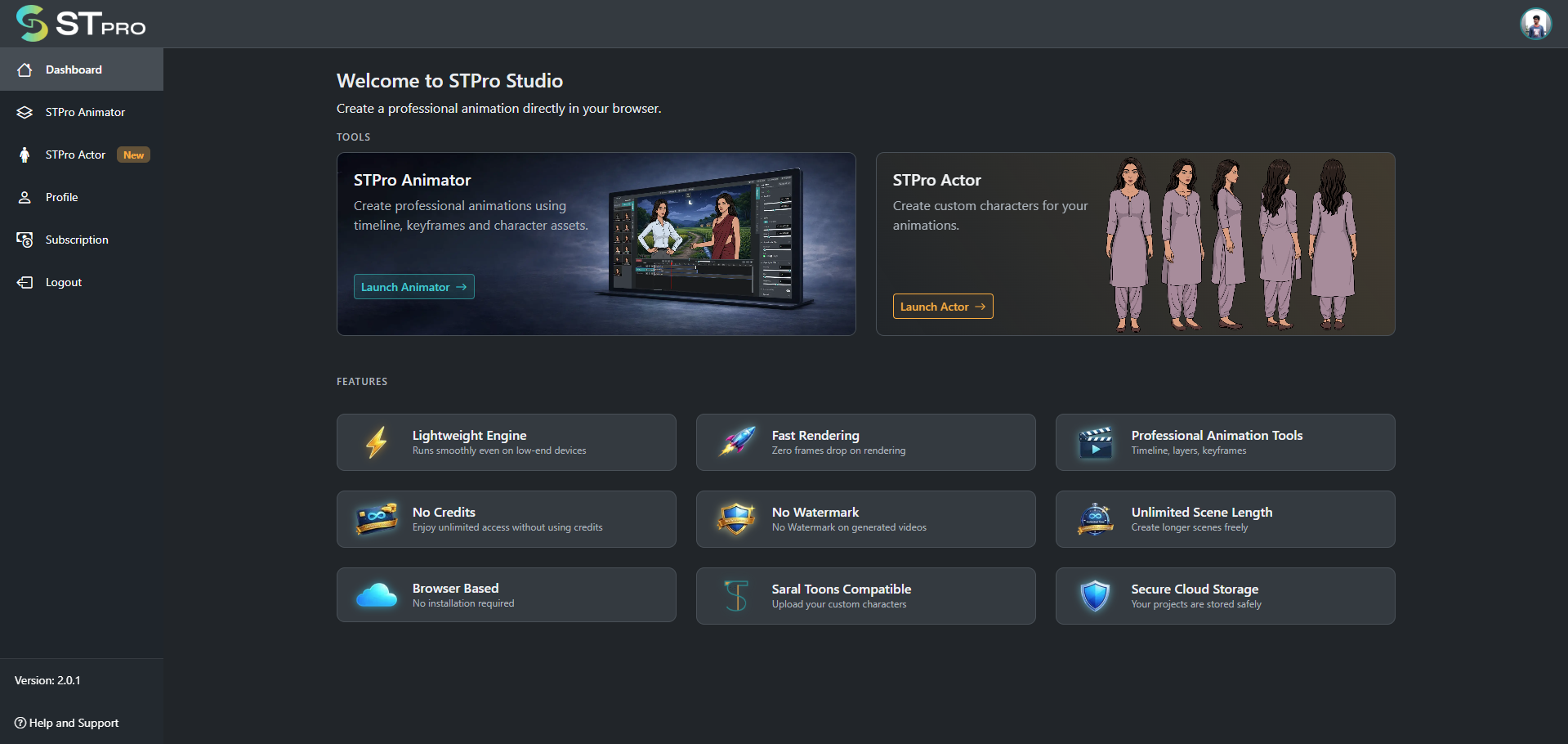
Section titled “Step 5 — Redirect to Dashboard”After successful authentication, users are redirected to the STPro Studio dashboard.
The account is now ready to use.
Note
STPro Studio supports single-device active sessions.
If the same account is logged in on another device, the previous device session is automatically logged out.
Only one active device session can operate the account at a time.
Register with Email
Section titled “Register with Email”Users can also create an account manually.
Step 1 — Enter Account Details
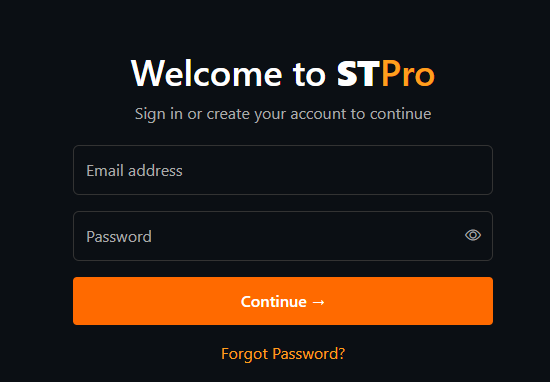
Section titled “Step 1 — Enter Account Details”Provide required information such as:
- Email address
- Password
Step 2 — Submit Registration
Section titled “Step 2 — Submit Registration”Click on the Continue —>.
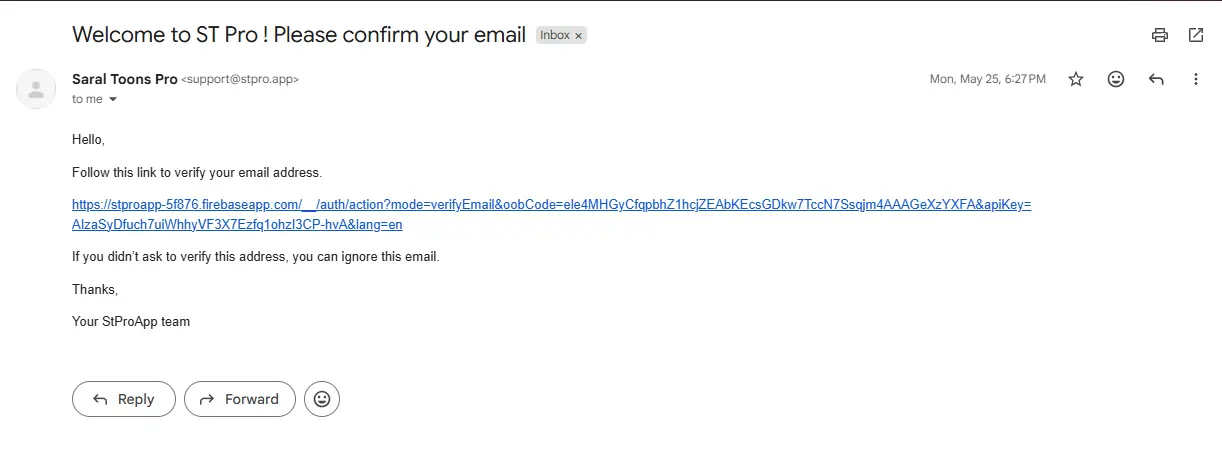
Step 3 — Verification Email
Section titled “Step 3 — Verification Email”After registration, STPro Studio sends a verification email to the registered email address.
Step 4 — Verify Email
Section titled “Step 4 — Verify Email”Open the verification email and follow the verification link.
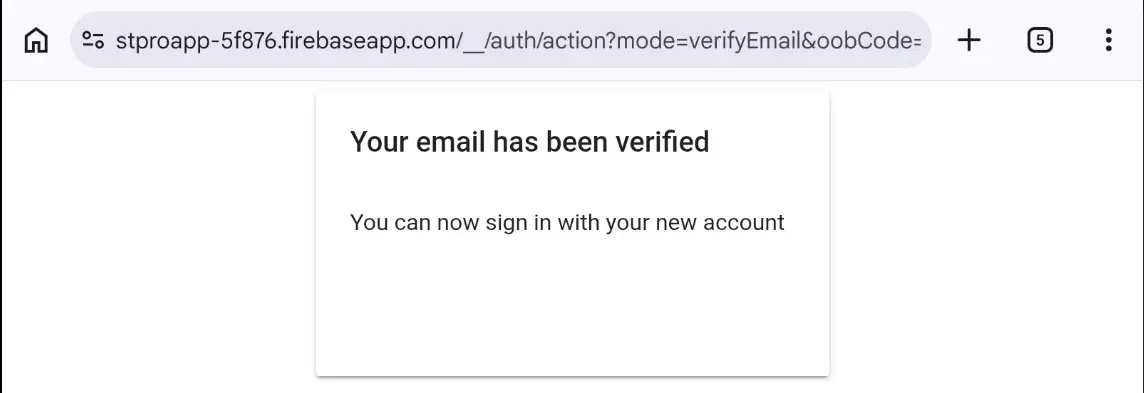
The account becomes active after successful verification.
Step 5 — Login to STPro Studio
Section titled “Step 5 — Login to STPro Studio”Return to:
Log in using the registered email and password.
Note
Email verification must be completed before accessing platform features and services.
Email Verification
Section titled “Email Verification”Email verification is an important security step.
Verification helps:
- Confirm account ownership
- Prevent unauthorized registrations
- Improve platform security
Users may not be able to access platform features until verification is completed.
Note
Logging into another device automatically terminates the previous active session associated with the same account.
Logging In with Email
Section titled “Logging In with Email”- Open the STPro Studio login page.
- Enter registered email address.
- Enter password.
- Click Login or Sign In.
- After successful authentication, the dashboard opens.
Forgot Password
Section titled “Forgot Password”If users forget their password:
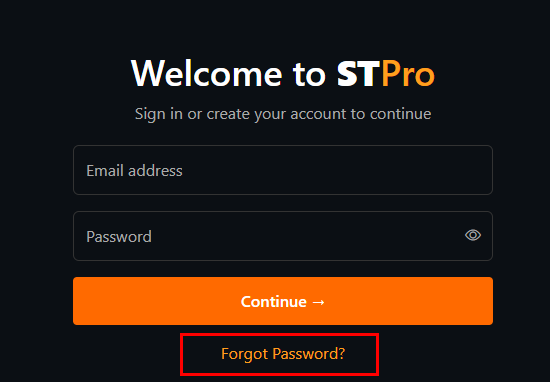
- Open the login page.
- Select the Forgot Password option.
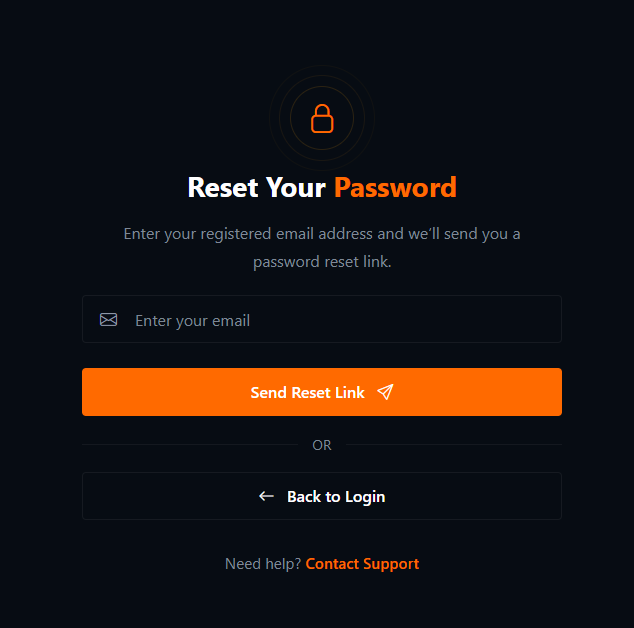
- Enter the registered email address.
- Follow password reset instructions received through email.
Session Security
Section titled “Session Security”STPro Studio uses secure authentication sessions to protect user accounts.
For better account safety:
- Use strong passwords
- Avoid sharing login credentials
- Log out from shared devices
- Use verified email accounts
Active Session Policy
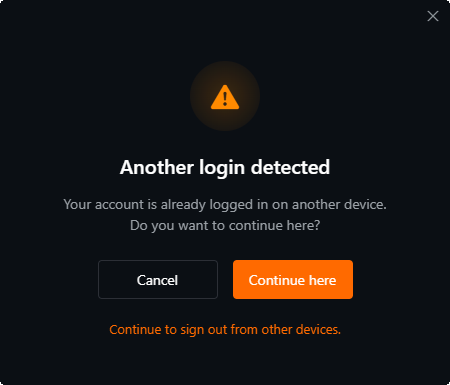
Section titled “Active Session Policy”STPro Studio currently allows account access on only one active device at a time.
How It Works
Section titled “How It Works”- Logging in on a second device automatically logs out the first device
- Simultaneous active sessions are not supported
- This policy helps improve account security and prevent unauthorized access
This behavior applies to both:
- Google Authentication
- Email Authentication
Login Errors and Solutions
Section titled “Login Errors and Solutions”Incorrect Password
Section titled “Incorrect Password”Possible causes:
- Typing mistakes
- Wrong password
- Caps Lock enabled
Solution
- Re-enter password carefully
- Reset password if required
Verification Pending
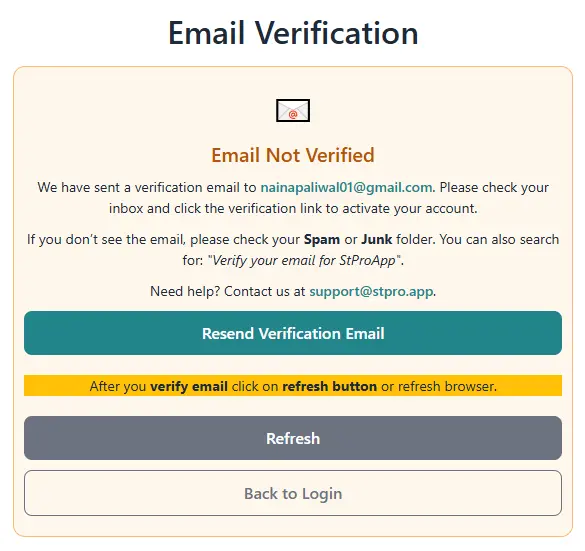
Section titled “Verification Pending”If login fails after registration:
- Check email inbox
- Complete email verification
- Check spam or junk folder
Google Authentication Failed
Section titled “Google Authentication Failed”Possible causes:
- Browser popup restrictions
- Internet issues
- Google permission denial
Solutions
- Refresh browser
- Retry authentication
- Allow popup windows
- Re-login to Google account
Session Logged Out Automatically
Section titled “Session Logged Out Automatically”Possible cause:
- Account logged in from another device
Solution
- Re-login on the preferred device
- Avoid simultaneous login attempts on multiple systems
Dashboard Access After Login
Section titled “Dashboard Access After Login”After successful authentication, users gain access to:
- STPro Studio dashboard
- STPro Animator
- STPro Actor
- Asset management
- Subscription section
- Profile settings
Account Best Practices
Section titled “Account Best Practices”For secure account management:
- Use strong passwords
- Keep recovery email accessible
- Regularly update credentials if necessary
- Avoid logging in on untrusted systems
- Do not share account credentials publicly
Next Step
Section titled “Next Step”Continue to the next section to understand:
- Dashboard overview
- Available platform sections
- Navigation inside STPro Studio
- Workspace access