
Creating a New Project
A project is the main workspace container inside STPro Animator where users create and manage animations.
Each project can contain:
- Multiple scenes
- Characters
- Backgrounds
- Audio assets
- Visual effects
- Timeline animations
Projects help organize animation workflows efficiently.
Accessing the Project Section
Section titled “Accessing the Project Section”Before creating a project, users must:
- Open STPro Studio
- Log in successfully
- Launch STPro Animator
After entering the animator workspace, the project dashboard becomes available.
First-Time User Experience
Section titled “First-Time User Experience”When users open STPro Animator for the first time:
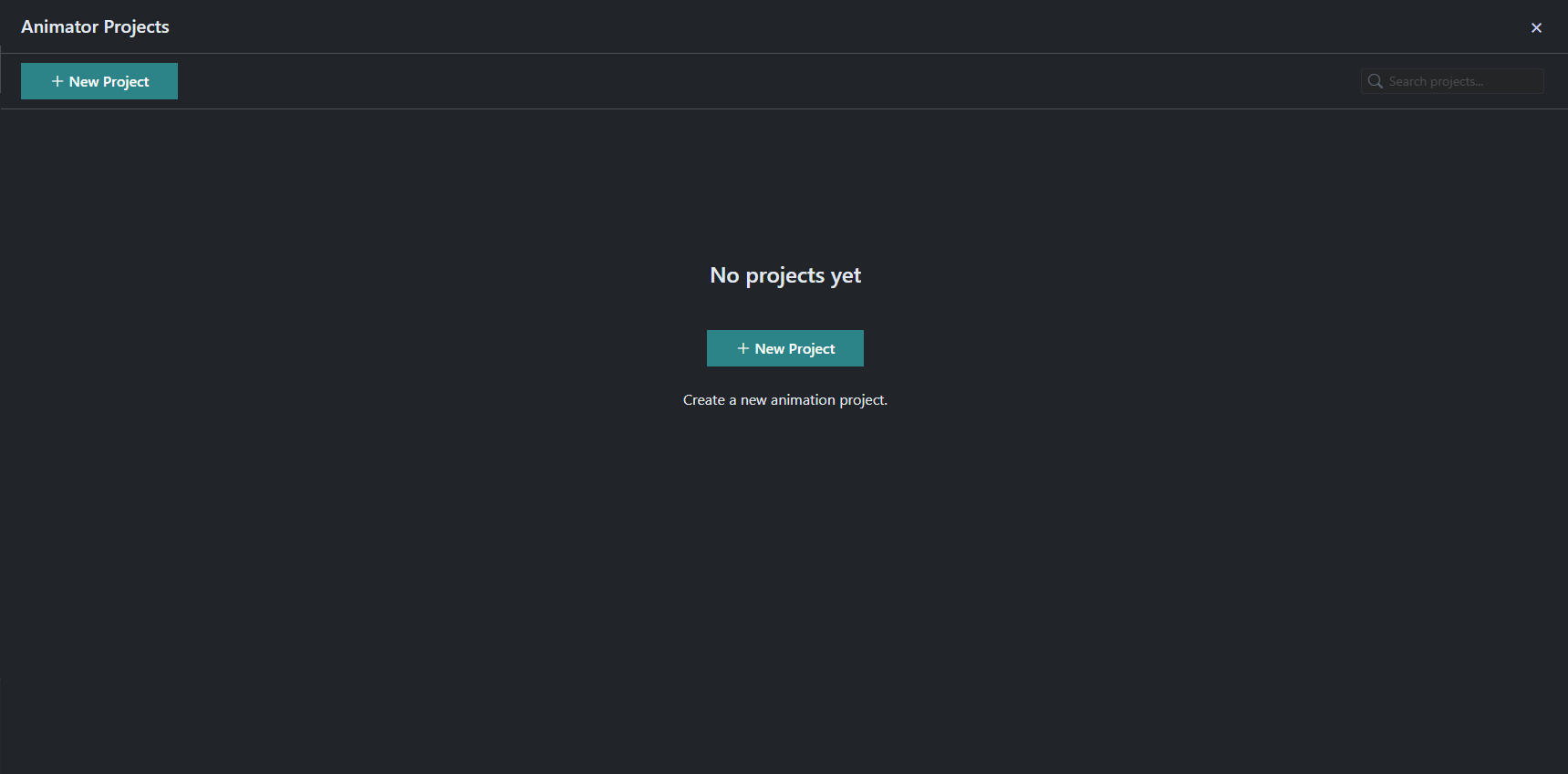
- No projects may appear initially
- The workspace starts empty
- A + New Project option is available
Users can create unlimited projects depending on platform limitations and subscription availability.
Creating a New Project
Section titled “Creating a New Project”Step 1 — Open STPro Animator
Section titled “Step 1 — Open STPro Animator”Launch the animator from the STPro Studio dashboard.
Step 2 — Click ”+ New Project”
Section titled “Step 2 — Click ”+ New Project””Locate and select the:
- ”+ New Project” (button)
This opens the project creation workflow.
Step 3 — Enter Project Information
Section titled “Step 3 — Enter Project Information”Depending on the platform configuration, users may be asked to enter:
- Project name
- scene name

Step 4 — Create the Project
Section titled “Step 4 — Create the Project”After entering required information:
- Confirm project creation
- The animation workspace opens automatically
The newly created project is now ready for editing.
Project Interface
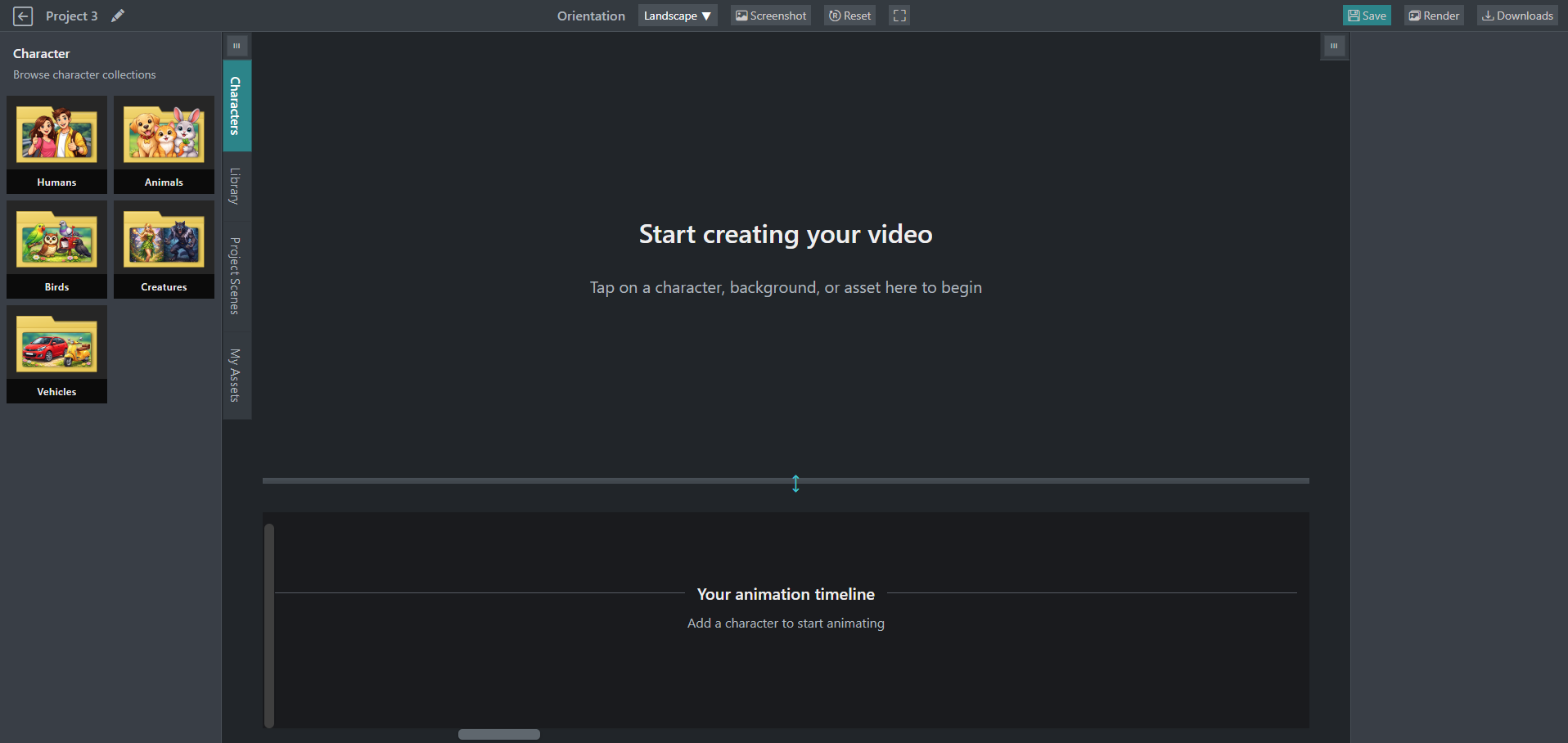
Section titled “Project Interface”After creation, the project opens inside the main animator interface.
The workspace generally includes:
- Left asset panel
- Center animation canvas
- Timeline section
- Right properties panel
Project Organization
Section titled “Project Organization”Projects help separate animation workflows.
Different projects can be used for:
- Story animations
- Marketing videos
- Educational content
- Social media content
- Presentation videos
Naming Projects
Section titled “Naming Projects”Using meaningful project names is recommended for easier management.
Example naming formats:
- Product Promo Animation
- Story Episode 01
- Educational Video Project
- Social Media Reel
Proper naming helps users quickly identify projects later.
Multiple Project Support
Section titled “Multiple Project Support”STPro Animator supports managing multiple projects.
Users can:
- Open existing projects
- Create additional projects
- Organize separate animation workflows
This improves production management for creators working on multiple videos.
Opening Existing Projects
Section titled “Opening Existing Projects”Previously created projects can be reopened from the Animator project dashboard.
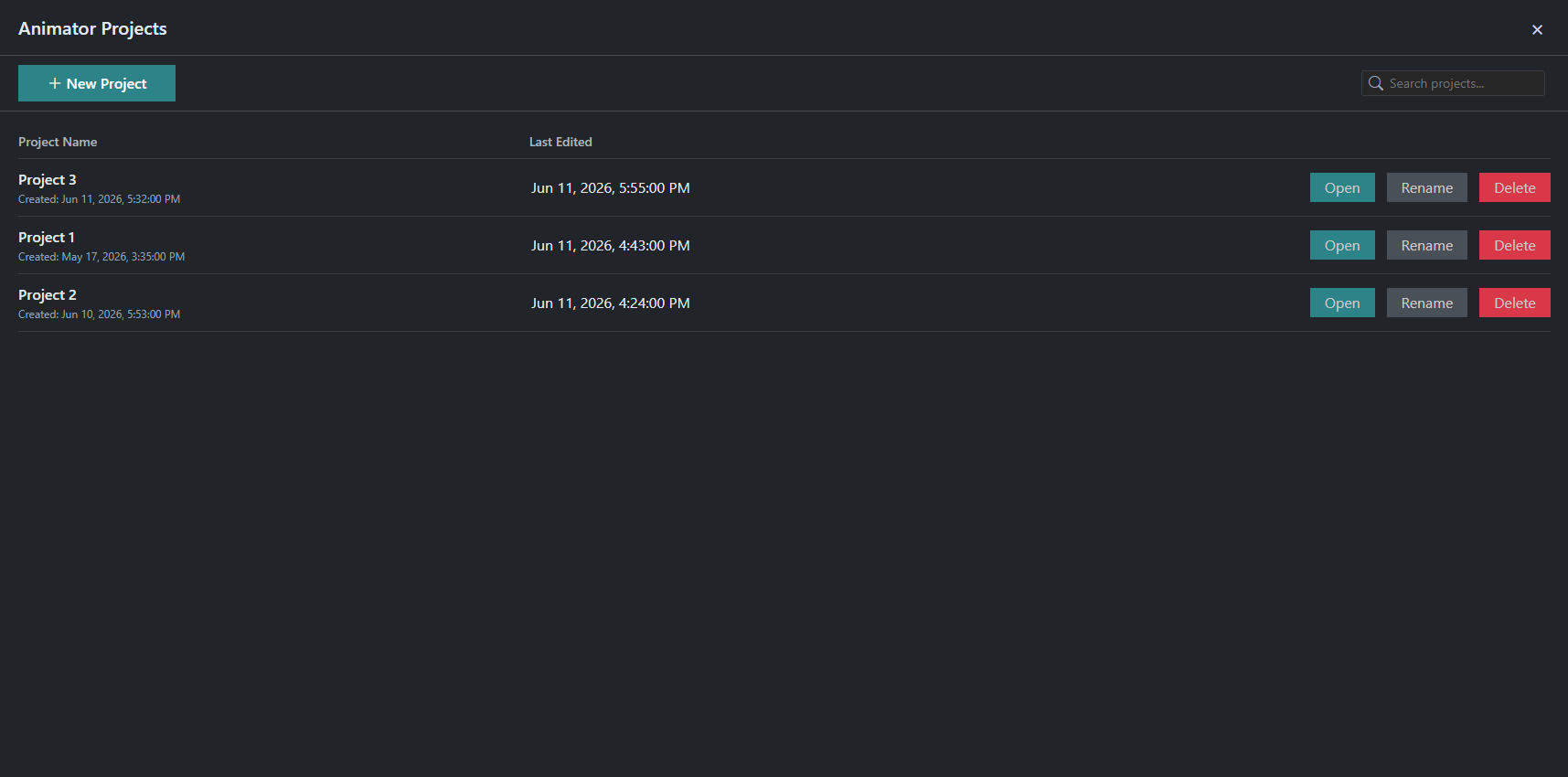
Projects are automatically sorted by recent activity, making it easier to locate ongoing work.
Users can:
- Continue editing
- Modify scenes
- Update animations
- Render new versions
- Review the last edited date and time
Project Sorting and Recent Activity
Section titled “Project Sorting and Recent Activity”To help users quickly continue their work, STPro Animator automatically organizes projects based on recent activity.
Projects that were most recently:
- Created
- Edited
- Updated
are displayed at the top of the project list.
Last Edited Information
Section titled “Last Edited Information”Each project displays its most recent activity details, including:
- Last edited date
- Last edited time
This information helps users:
- Identify active projects
- Resume work quickly
- Track recent changes
- Manage multiple animation projects efficiently
Automatic Project Ordering
Section titled “Automatic Project Ordering”Project ordering updates automatically whenever:
- A new project is created
- An existing project is edited
- Project changes are saved
The most recently modified project always appears first in the project dashboard.
Example:
| Project | Last Edited |
|---|---|
| Product Promo | Jun 10, 2026 - 2:15 PM |
| Training Video | Jun 09, 2026 - 6:30 PM |
| Social Media Reel | Jun 08, 2026 - 11:10 AM |
In this example, Product Promo appears at the top because it was edited most recently.
Note
Project ordering is based on the latest saved changes. Unsaved modifications do not update the project’s last edited timestamp.
Project Performance Considerations
Section titled “Project Performance Considerations”Large projects with many assets and animations may require more system resources.
Performance can depend on:
- Browser capability
- Internet connection
- Asset quantity
- Timeline complexity
For better performance:
- Use updated browsers
- Close unused tabs
- Avoid excessive background applications
Common Project Creation Issues
Section titled “Common Project Creation Issues”Project Not Creating
Section titled “Project Not Creating”Possible causes:
- Internet instability
- Browser issues
- Temporary server problems
Solutions:
- Refresh browser
- Retry creation
- Restart browser
Slow Workspace Loading
Section titled “Slow Workspace Loading”Possible causes:
- Large asset initialization
- Limited system memory
- Slow internet connection
Recommended actions:
- Wait for initialization
- Reduce browser load
- Use stable internet connectivity
Security and Access
Section titled “Security and Access”Only authenticated users can create and manage projects.
Users should:
- Keep account credentials secure
- Logout from shared systems
- Avoid unauthorized account sharing
Summary
Section titled “Summary”Projects are the foundation of the STPro Animator workflow.
By creating projects, users can organize scenes, assets, animations, and rendering workflows into structured production environments suitable for both beginner and professional animation creation.
Next Step
Section titled “Next Step”Continue to the next documentation section to learn:
- Interface overview
- Workspace sections
- Timeline controls
- Animation editing tools