
Subscription and Upgrade
STPro Studio offers subscription plans that unlock premium features across both STPro Animator and STPro Actor.
Users can manage subscriptions directly from the Subscription section available in the dashboard.
Subscription Overview
Section titled “Subscription Overview”A subscription provides access to premium platform capabilities and advanced content creation tools.
When a subscription is activated, premium access is enabled for:
- STPro Animator
- STPro Actor
A single subscription covers both applications.
Accessing the Subscription Section
Section titled “Accessing the Subscription Section”To access subscription details:
- Log in to STPro Studio.
- Open the dashboard.
- Click on Subscription from the navigation menu.
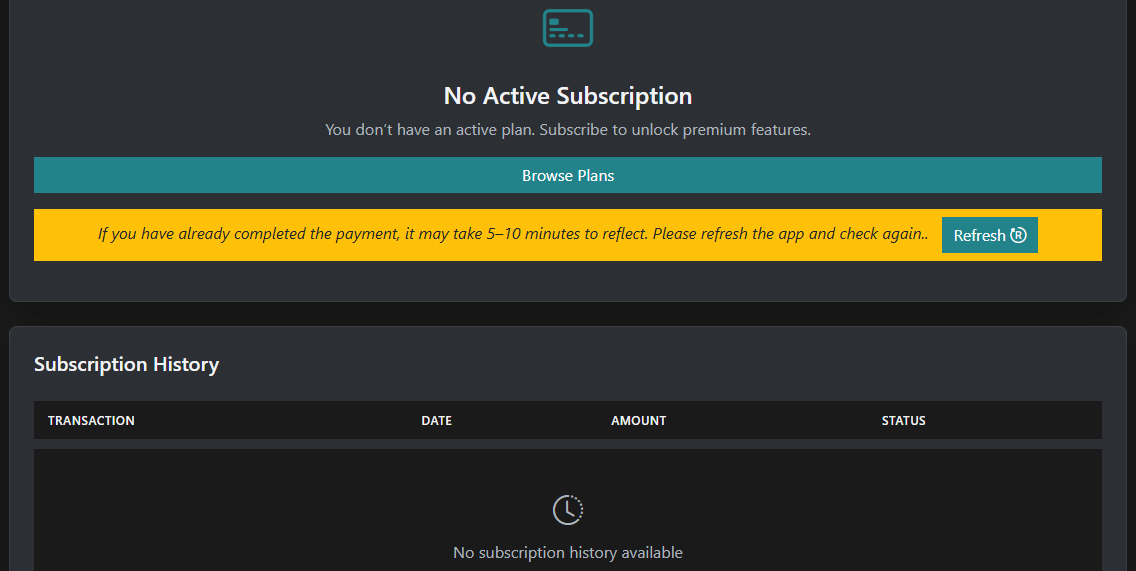
The subscription page displays:
- Current subscription status
- Available plans
- Upgrade options
- Payment methods
- Transaction history
Subscription Status
Section titled “Subscription Status”The subscription page displays the user’s current plan status.
Possible status include:
- Active Subscription
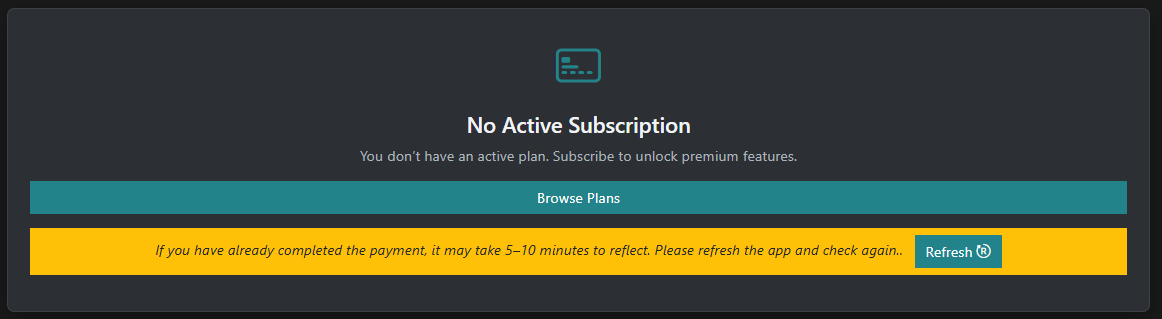
- No Active Subscription
- Expired Subscription
If no plan is active, users can browse and purchase available plans.
Available Plans
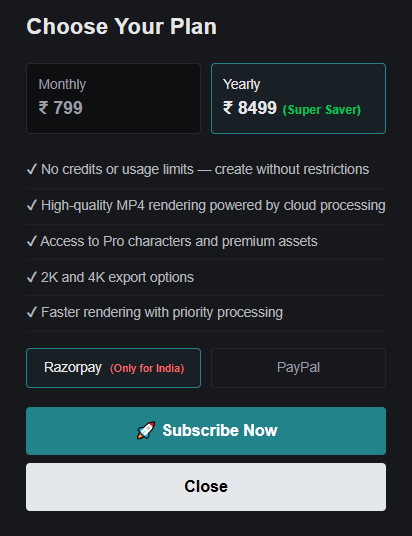
Section titled “Available Plans”STPro Studio may offer multiple subscription options.
Common plan types include:
Monthly Plan
Section titled “Monthly Plan”Designed for users who prefer short-term subscriptions.
Benefits include:
- Premium platform access
- Animator premium features
- Actor rendering access
- Premium assets
- Cloud rendering support
Yearly Plan
Section titled “Yearly Plan”Designed for long-term users.
Benefits include:
- All monthly plan features
- Long-term access
- Cost savings compared to monthly billing
- Priority rendering support
Note
Available plans, pricing, and benefits may change over time based on platform updates.
Premium Features
Section titled “Premium Features”An active subscription unlocks premium capabilities across the platform.
Premium access may include:
- STPro Actor rendering
- Premium character assets
- Premium animation assets
- Cloud rendering support
- HD and higher-quality exports
- Faster rendering options
- Additional platform features
STPro Animator Access
Section titled “STPro Animator Access”With an active subscription, users can access premium Animator features and content.
Premium benefits may include:
- Advanced rendering capabilities
- Premium assets
- Additional animation resources
- Enhanced export options
Note for STPro Animator
Subscription activation automatically enables premium access within STPro Animator.
STPro Actor Access
Section titled “STPro Actor Access”STPro Actor rendering requires an active subscription.
Without a subscription:
- Character creation is allowed
- Character customization is allowed
- Character preview is allowed
- Actor rendering is restricted
With an active subscription:
- Actor rendering becomes available
- Rendered actors can be used inside Animator projects
Note for STPro Actor
STPro Actor requires an active subscription for character rendering.
Payment Methods
Section titled “Payment Methods”STPro Studio supports multiple payment methods depending on user location.
Available payment options may include:
- Razorpay
- PayPal
Razorpay
Section titled “Razorpay”Razorpay is available in supported regions and countries.
Users can complete payments using supported Razorpay payment methods.
PayPal
Section titled “PayPal”For users located outside supported Razorpay regions, international payment options may be available.
- Other supported international payment gateways
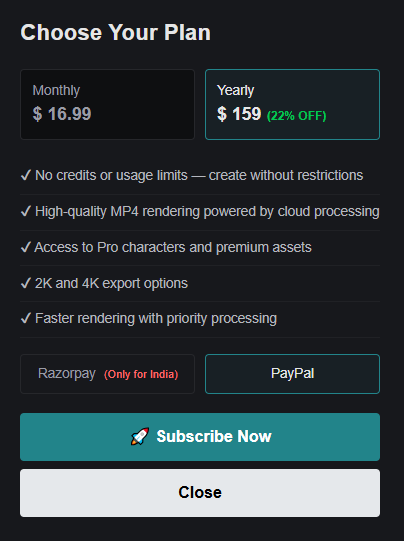
Payment availability may vary depending on country and regional restrictions.
Purchasing a Subscription
Section titled “Purchasing a Subscription”- Open the Subscription section.
- Click Browse Plans.
- Select a preferred plan.
- Choose a payment method.
- Complete the payment process.
- Wait for subscription activation.
Once activated, premium access becomes available across STPro Animator and STPro Actor.
Transaction History
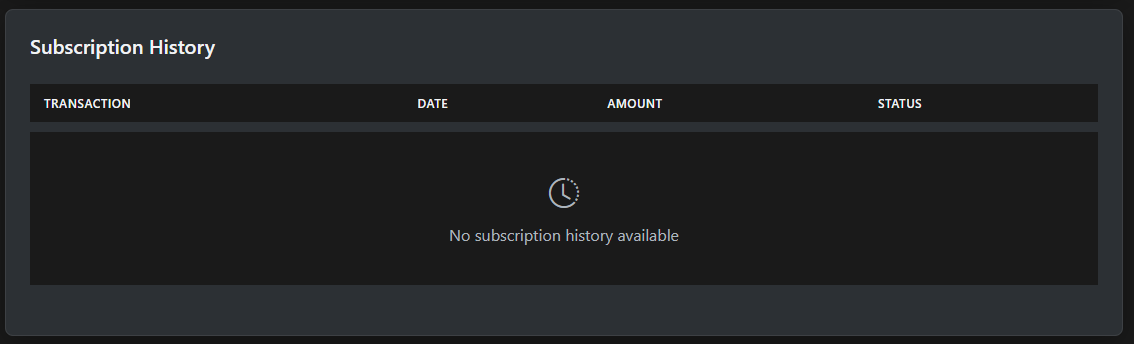
Section titled “Transaction History”The Subscription section includes a transaction history area.
Users can use transaction history to track subscription-related activities.
Information may include:
- Transaction ID
- Purchase date
- Amount paid
- Payment status
- Subscription details
Benefits of Transaction History
Section titled “Benefits of Transaction History”Users can:
- Verify successful payments
- Track subscription purchases
- Review payment records
- Monitor transaction status
Subscription Activation Delay
Section titled “Subscription Activation Delay”In some cases, subscription activation may take a few minutes after successful payment.
This can occur due to:
- Payment processing delays
- Network synchronization
- Gateway verification
Note
If payment has been completed successfully, subscription activation may take approximately 5–10 minutes to reflect in the account.
Refreshing Subscription Status
Section titled “Refreshing Subscription Status”If premium features do not appear immediately after payment:
- Wait a few minutes.
- Refresh the page.
- Recheck the subscription status.
- Verify the transaction history.
Most activation delays are resolved automatically after synchronization completes.
Subscription Not Activated
Section titled “Subscription Not Activated”If a completed payment does not activate premium features:
- Wait for a few minutes.
- Refresh the application.
- Check the Subscription section.
- Verify transaction history.
If the issue still persists, contact the support team.
Contact Support
Section titled “Contact Support”For subscription or payment-related issues, contact:
When contacting support team, provide:
- Registered email address
- Transaction details
- Payment date
- Relevant screenshots (if available)
This helps the support team investigate the issue more efficiently.
Best Practices
Section titled “Best Practices”For a smooth subscription experience:
- Use supported payment methods
- Verify payment completion
- Save transaction details
- Check transaction history regularly
- Contact support if activation delays continue
Next Step
Section titled “Next Step”Continue to the next documentation section to learn:
- STPro Animator overview
- Creating new projects
- Understanding the interface
- Working with animation tools